210 Freight Invoice Maintenance (ADD210GL) *subject
to user authorization
Can be
accessed by:
1.
Menu 1606,
2
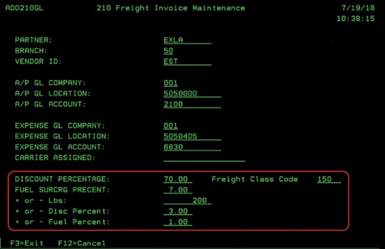
This screen shows the current “acceptable variances” for the selected Motor Freight Vendor. You will only have access to the bottom portion of the screen noted in RED box. This is where you set the “acceptable variances” between our WMS freight data and the actual data on Motor Freight Invoice from the carrier. You can change any of these values as needed.
If you leave these values blank, EVERY invoice will show up on the Accounts Payable Freight Invoices screen (see Menu 1605) with an error code and will require manual approval. If you set these up with reasonable values, any invoices within these guidelines will process through the system without errors.
Some examples:
· If EXLA invoices are setup with Freight Class Code 150, then all EXLA invoices with that same Freight Class Code will process without errors (unless something else is wrong). If the EXLA invoice comes in with a freight class code of 55, it would show up on the Accounts Payable Freight Invoices screen, Menu 1605 with an error code 07 -Freight Class Error.
· If the weight received from EXLA should be within 200 lbs of our weight estimate, then enter “200” in the “+ or – lbs” field. If the EXLA invoice comes in with only a 20 lb weight difference(variance), then it will process without errors (unless something else is wrong). If the EXLA invoice comes in with a weight difference of 210, it would show up on the Accounts Payable Freight Invoices screen, Menu 1605 with an error code 02 -Weight Error.
If this screen is setup properly, you can eliminate most Motor Freight Invoice Errors that appear on the Accounts Payable Freight Invoices screen, Menu 1605. Please note that invoices that appear on the Accounts Payable Freight Invoices screen (Menu 1605) cannot be paid to the Motor Freight Vendor until you approve the invoice manually. The more accurate this setup screen is established, the less errors you will have to manually process. You could be contacted directly by Accounts Payable for invoices with errors that have not been handled on a timely basis. Please check your Accounts Payable Freight Invoice screen, Menu 1605, on a daily basis.