5210 Option 6 - A/P Vendor
Misc Fees Maintenance
The A/P Vendor Misc Fees
Maintenance screen is used to set up the miscellaneious invoice fee that
will be deducted from selected vendors’ invoices. The fee types must be set up in the
Miscellaneous Fees defaults master (menu option 5282).
The A/P vendor maintenance option
(5210) is used to access the screen to add or change the miscellaneous fees
that are to be deducted from vendor invoices.
Select menu option 5210, then select option ‘6’ (Misc Fees) and enter
the vendor code to maintain.
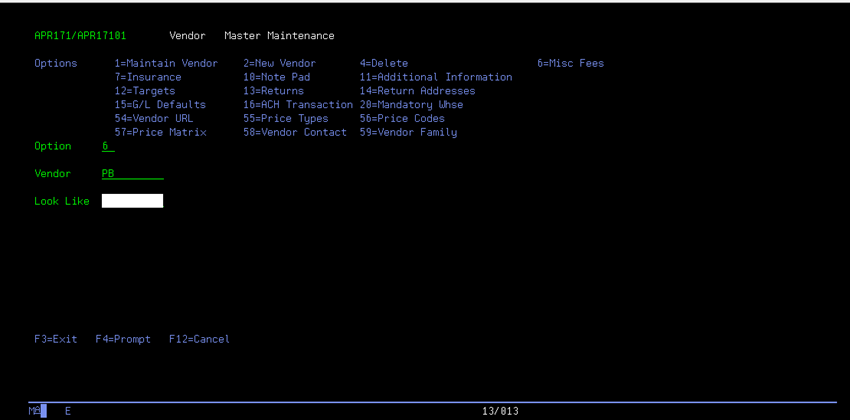
The Vendor Miscellaneous Fees screen
will display.
If no miscellaneous fees exist for
the requested vendor, a blank screen will display to add new entries.
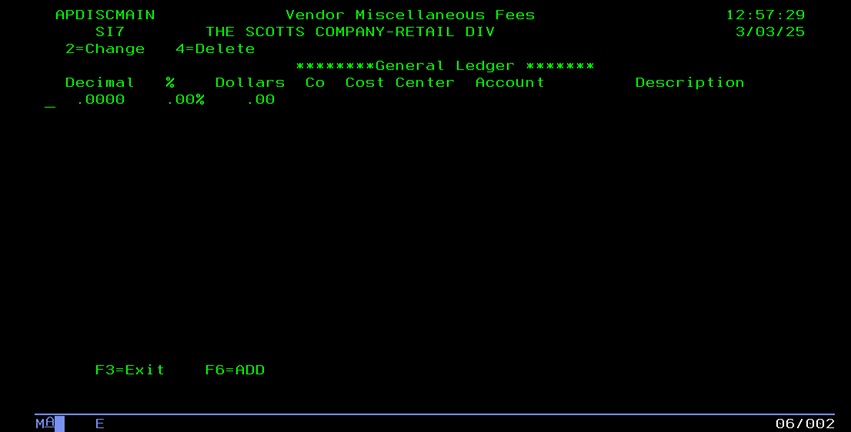
If the vendor already has
miscellaneous fees, the current fees will display.
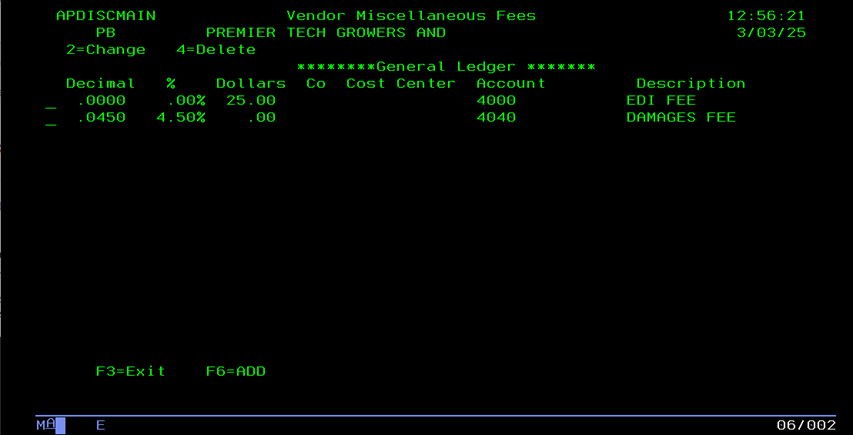
To add a new miscellaneous fee for a
vendor, press F6. The list of valid
miscellaneous fee types will display.
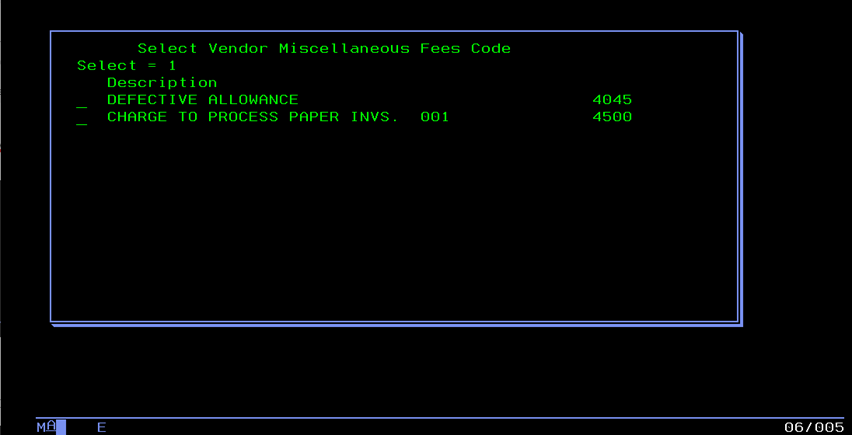
Enter a ‘1’ in the option field for
the fees to be added. The miscellaneous fee entry screen will
display.
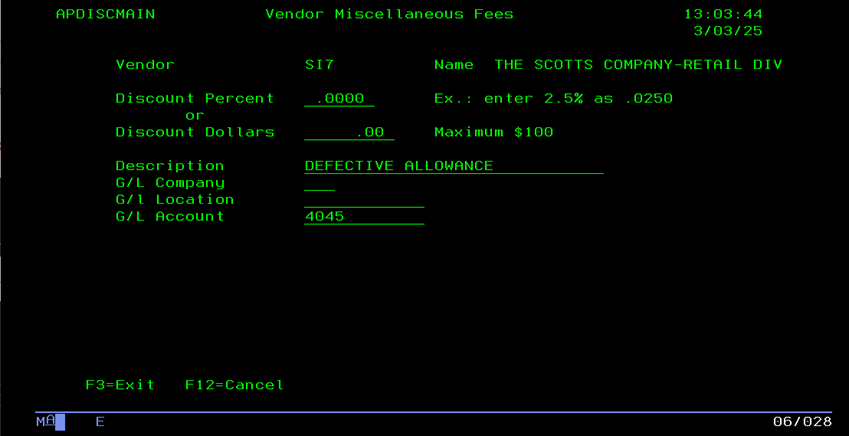
Enter either a Percentage OR a Flat
amount that is to be deducted from each of the vendor’s invoices.
If a percentage is entered, enter as
a fraction of 1, up to 4 decimals.
Example, enter 2.5% as .0250. 10%
(.1000) is the maximum fee percentage allowed.
If a flat amount is to be deducted,
enter in the Dollars field (with decimals).
$100.00 dollars is the maximum flat amount allowed.
The description and General Ledger
information is display only and cannot be changed.
When the additions are complete,
press ENTER to save the entry, or F12 to exit without saving.
NOTE:
More than 1 miscellaneous fee can be entered for the same miscellaneous fee
type.
To change the fee for an existing
miscellaneous fee, enter a ‘2’ in the option column for the fee to change.
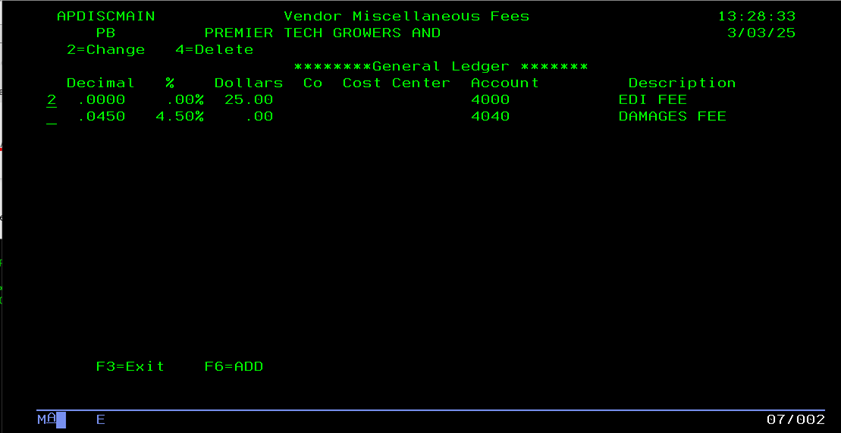
The miscellaneous fee maintenance
screen will display with the current fee definition displayed.
Key in the changes required and press
ENTER to save, or press F12 to exit without saving the changes.
The same rules of entry apply as the
new fee entry.
To delete fee for an existing
miscellaneous fee, enter a ‘4’ in the option column for the fee to delete.
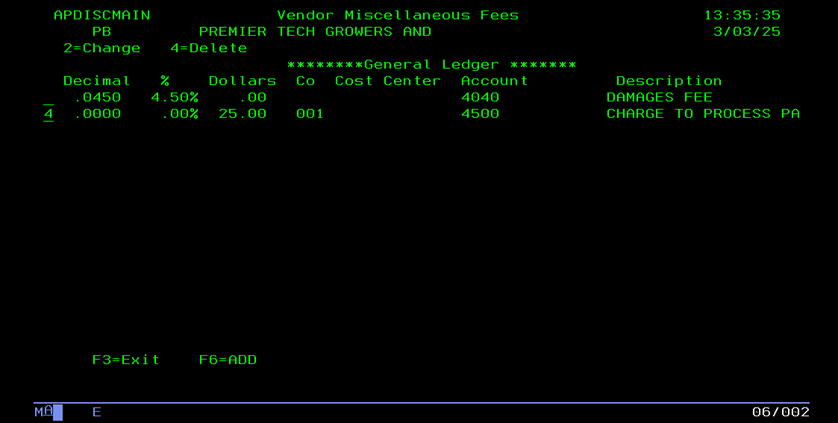
The miscellaneous fee will delete
immediately, and will no longer generate this fee on new invoices.
Any existing invoices that already
have this fee will still be deducted.
When all add and changes are
complete, press F3 to return to the main vendor maintenance screen.