Accounts
Payable Inquiry (APR108/CLT1)
Can be accessed by:
The Accounts Payable Inquiry screen will provide comprehensive information on vendor invoices & payments made. From this menu option, you can see: open invoices, view invoice details (including line items ordered), purchase order history, item details, payment history and check batch information.
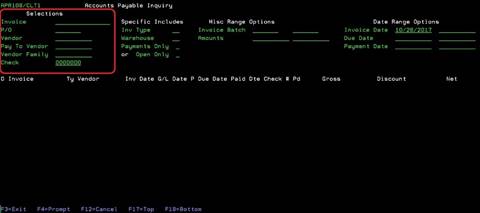
You can search AP Invoices with a variety of selections shown on the left side of screen. Some of these selection options have F4 lookups: invoice, Vendor (Menu 5920), Pay-To Vendor (Menu 5218), Vendor Family (Menu 5217), or check#. If you know the invoice number that you want to inquire on, enter it in the Invoice field and press ENTER. If you press F4 while in the Invoice field, it will redirect you to the Vendor (Menu 5920) lookup. After you have selected a Vendor, all invoices for that vendor will appear on the screen. If you leave all selection fields empty and press ENTER, all AP Invoices, regardless of vendor, will be listed on the screen.
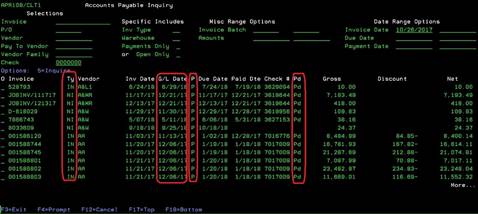
Regardless of your Filter Selection, both paid and unpaid invoices can be viewed on this screen as default.
· TY column shows if this invoice is for an inventory item (IN), a non-inventory item (NI) or employee expense (EM).
· “P” column lets you know if this invoice was posted to the GL account and the GL date listed beside it.
· “Pd” column lets you know if this invoice has been paid or not.
· GL Date shows when this invoice posted to the General Ledger account.
Once you have the invoices on the screen that you want to view, you can choose: “5”-AP invoice inquiry (APR120/CTL1), F17-Top (of list), F18-Bottom (of list with summary).
You can narrow down the AP invoices seen by a variety of ways:
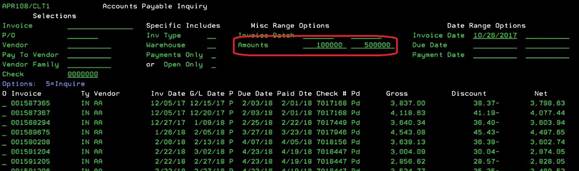
· If you want to view only the Invoices within a specific amount range, place your range in the Amounts fields. Keep in mind that you must enter two extra zeros for decimal placing. If you enter 10, the system thinks that is $0.10. If you enter 500, the system thinks that is $5 and not $500.00.

· To see all the invoices from $1,000 to $5,000, enter the numbers with two extra zeros.
· To see all the invoices from $1,000 to $5,000 that are unpaid only, enter the numbers with two extra zeros and a “Y” on Open Only.
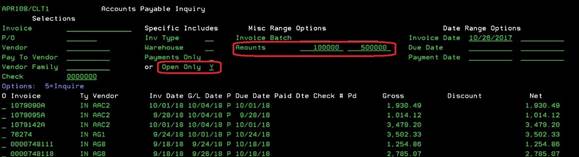
· If you want to view all Open Invoices, place a Y in the Open Only field and leave Amount fields blank.

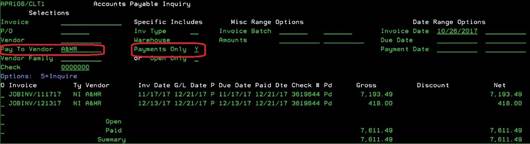
· If you want to see all of the payments made to a specific vendor, enter the vendor# in the Pay-To Vendor field and place a Y in the Payments Only field.
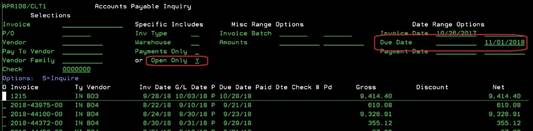
· If you want to see all invoices that are unpaid (Open) and due by 11/1/2018, enter your choices as shown below.
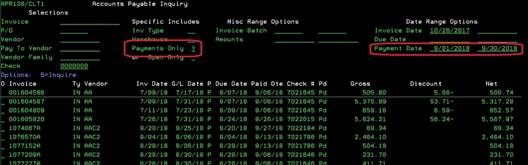
· If you want to see all invoices that were paid for the month of September, enter the choices as shown below.
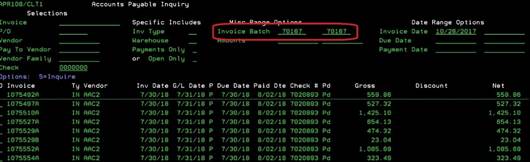
· If you want to see all invoices that were paid in a specific batch (or batch range), enter batch numbers to be searched.
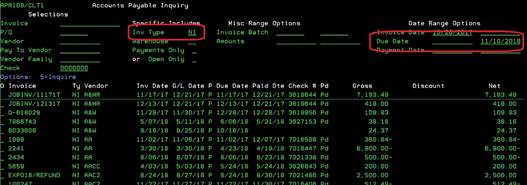
· If you want to see all “NI” invoices that were due on 11/10/2018, enter “NI” for invoice type and the due date to search.
Underlined items- refers to another
AS400 document. Search for the other document in the AS400
Documents in the Documents tab to get further instructions.
To Report Documentation Issues:
To
report any missing items/options or make any suggestions for this user guide,
please email Belinda
Rollins. This guide will be updated as need arises or substantial
changes made to the program.