Credit Inquiry (ARR184/SFLCTL)
1.
Menu 1121, “C”
2.
Menu 6640
3.
Menu 6935, “C”
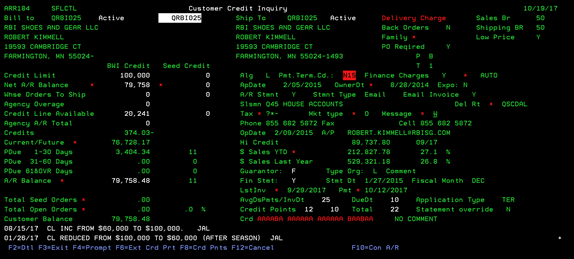
This
is the Customer Credit Inquiry screen. This
screen is full of credit information concerning the chosen customer. If this is
not the correct customer, you do not have to exit this screen. You can simply
type the correct customer# in the Active field at the top and press ENTER to
get the new customer informaton. From this screen you can choose: (F2)-Detail (F4)-Prompt
on Customer# field, (F6)- Ext
Credit Prt, (F8)-Crd
Pnts and (F10)-Con A/R. Details about the fields on this screen are listed
below.
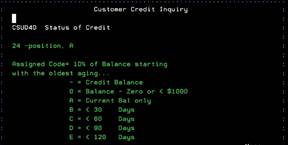
CRD field
This
field shown at the bottom right side of the screen, has an (F1) lookup to show
exactly what each RED letter stands for in the 24 month credit history
displayed. Each single character stands for a month time
frame beginning with the most recent month. You can press (F1) to see the
translation of each character.


Credit Notes
Credit Notes are displayed
in WHITE at the bottom left of the screen. The “+” field in the lower right
hand corner will let you know if there are additional Credit Notes for this
customer. Notes are listed by Most Recent
first. Use the PAGE DOWN button to scroll through the remaining notes. These are entered by the Credit Department in
Menu 6610.

A/R Shortcuts
While
on the Customer Credit Inquiry screen, you can view A/R shortcuts. Each field
with a red “*” beside it, contains a short cut. If you have appropriate authorization,
you can double RIGHT click on the data beside the “*” and another screen will pop up with detailed information.
Shortcut items are listed below, left side of screen first and then the right
side of screen.
1.
Net A/R Balance (BWI Credit or Seed Credit) – This displays the
current credit limit and seed limit for this customer. If you double RIGHT
click on the data beside this field header (either red highlighted box), you will be redirected to BWI Customer Credit
Limit Information screen.

2.
Current/Future – This displays the open, unpaid
invoices for this customer. If you double RIGHT click on the data beside this
field header (red highlighted box), you
will be redirected to the Consolidate Invoice Inquiry screen.

3. A/R Balance – This displays the total
A/R balance with unpaid invoices and all current/future orders included for
this customer. If you double RIGHT click on the data beside this field header
(red highlighted box), you will be
redirected to the Customer A/R Aging screen.

4.
Total Seed Orders – This displays the current total of seed orders for this
customer. If you double RIGHT click on the data beside this field header (red
highlighted box), you will be redirected
to the BWI Customer Credit Limit Information screen.

5.
Total Open Orders – This displays the current
total of open orders for this customer. If you double RIGHT click on the data
beside this field header (red highlighted box),
you will be redirected to the Consolidated Order Inquiry screen.

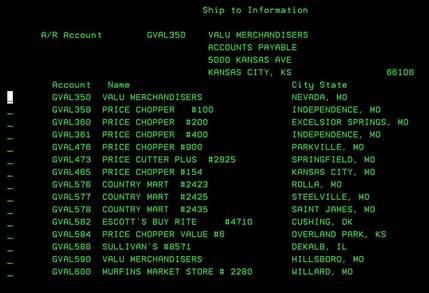
6. Ship-To –
This displays the default ship to address for this bill to customer. Although
this field does not have the “*”, there is a
hidden short cut here. If you double
RIGHT click on the data below this field header (red highlighted box), you will be redirected to the Ship-To Information
screen.

Ship-To Information - This will list all ship to locations that “roll up” (bill
to) this customer. This display is for viewing only. Pressing F12 or F3 will
return you to the previous screen.
7.
Family – This displays the Family name for this account, if
applicable. If you double RIGHT click on
the data beside this field header (red highlighted box), you will be redirected to the Family Credit
Inquiry screen.
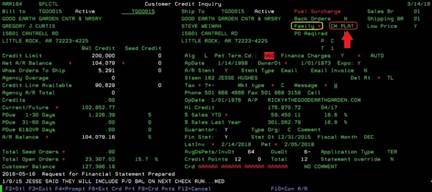
8. AUTO – This is a shortcut to the Auto COD Notes screen. If you double RIGHT click on the field header(AUTO)
(red highlighted box), you will be redirected to the Auto COD Notes screen.

Auto COD notes - This shows any COD notes
on file for this customer. This display is for viewing only. Pressing F12 or F3
will return you to the previous screen.

9. OwnerDt – This displays the date the current owner took over this
customer account. If you double RIGHT click on the date beside this field
header (red highlighted box), you will
be redirected to the Customer Contact Information screen.

10. Del Rt –
This displays the default delivery route for this customer. If you double RIGHT
click on the data beside this field header (red highlighted box), you will be redirected to the Customer
Delivery Routes screen.

11. Tax – This will always display “?*-“ on the screen. If you double RIGHT click on the “?*-“ beside
this field header (red highlighted box),
you will be redirected to the Customer Sales Tax Information screen.

12. Mkt type – This displays the current market type for this customer. If
you double RIGHT click on the data beside this field header (red highlighted
box), you will be redirected to the Price Plan Sequence screen.

13. Message – This displays the default message class for this customer.
If you double RIGHT click on the data beside this field header (red highlighted
box), you will be redirected to the Customer Additional Information pop
up screen.

Customer Additional Information - This pop up box is much like the initial “W” message pop up
box when you entered the Menu 6640 screen. The only difference is this screen
shows all available Customer notes stored for this particular customer. This display is for viewing only. Pressing any key will return you to the previous
screen. Please refer to Menu 6210 for maintenance on this option.

14. $SalesYTD – This displays the sales YTD amount. If you double RIGHT
click on the amount beside this field header (red highlighted box), you will be
redirected to the Customer Sales History.

15. LSTINV – This displays the last invoice date. If you double RIGHT
click on the date beside this field (red highlighted area), you will be
redirected to the A/R Item Inquiry by Customer screen.

16. PMT – This displays the last payment date. If you double RIGHT
click on the date beside this field (red highlighted area), you will be
redirected to the Customer Payment History screen.
