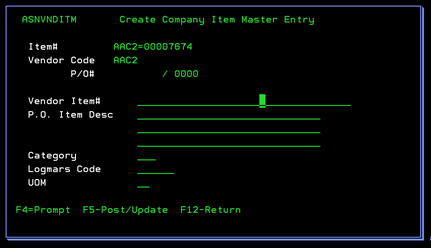
To add a new “=” code item (ASNVNDITM)
Can be accessed by:
1.
Menu 3185,
1, F6
2.
Menu 4110
in ITEM NUM lookup, 1, F6
If you press F6, you can add a new vendor item on the new popup that appears as shown below. Enter the description of the item, category, logmars code and UOM. There are three lines given for the details, but the most descriptive part needs to be on the first line as that will be shown on the Purchase Order if sent by EDI. You can choose: (F4) Prompt- while on the Category, Logmars, or UOM fields to lookup options for those fields; (F5) -update the record with your changes, (F12)-return you to the previous screen without saving.
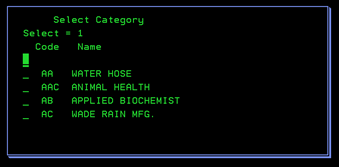
Category Lookup
Can be accessed by:
1.
Menu 3185,
1, F6, F4 on category field
2.
Menu 4110
in ITEM NUM lookup, 1, F6, F4 on category field
You can press the F4 while on the Category
field to lookup the available codes for this new item. You can press the Page Down key to scroll
through the list for the appropriate code. Select the appropriate code with “1”
and pressing Enter.
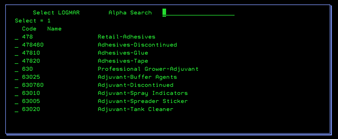
Logmars Code
Can be accessed by:
1.
Menu 3185,
1, F6, F4 on Logmars field
2.
Menu 4110
in ITEM NUM lookup, 1, F6, F4 on Logmars field
You can press the F4 while on the Logmars Code field to lookup the available codes for this new item. You can press the Page Down key to scroll through the list for the appropriate code. Select the appropriate code with “1” and pressing Enter.
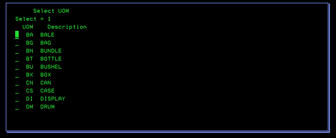
UOM
Can be accessed by:
1.
Menu 3185,
1, F6, F4 on UOM field
2.
Menu 4110
in ITEM NUM lookup, 1, F6, F4 on UOM field
You can press the F4 while on the UOM field to lookup the available codes for this new item. You can press the Page Down key to scroll through the list for the appropriate code. Select the appropriate code with “1” and pressing Enter.