Customer Additional
Information (CSTMNTNOTE)
Can be accessed by:
1.
Menu
6210, 5, Customer Notes
2.
Menu 6280
3.
Menu
6640, DelRT Shortcut, F9
Customer
Notes can be altered in multiple places.
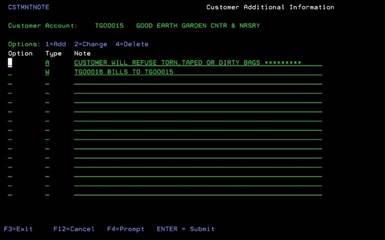
You can add, change or delete customer notes from this screen. These
notes are very valueable and are sometimes used on Invoices or EDI orders. Each
note TYPE has differnet purposes, so please take care when choosing the TYPE
that should be used. If you have
questions on where information should go, please consult your supervisor. Please avoid using “*” or other special
characters as they do not translate to EDI orders. From here you can choose: 1-Add, 2-change, 4-delete or F4 on TYPE
field.
Can be accessed by:
1.
Menu
6640, DelRT Shortcut, F9, 1
2.
Menu
6280, 1
3.
Menu
6210, 5, Customer Notes, 1
Entering
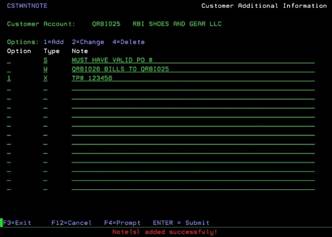
a “1” in the OPTION field, moves you to the TYPE field. Enter a valid Note Type
here. If you do not know that valid Types, press F4 for a pop up list. After a valid
Type is entered, complete your note for this customer and press ENTER. You will
see a message at the bottom showing “Note added successfully”.
Change Note (CSTMNTNOTE)
Can be accessed by:
1.
Menu
6640, DelRT Shortcut, F9, 2
2.
Menu
6280, 2
3.
Menu
6210, 5, Customer Notes, 2
Entering
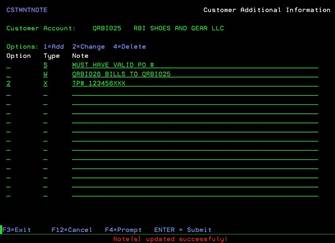
a “2” in the OPTION field, moves you to the TYPE field. If you need to change
the Type of this note, please enter a valid TYPE code. Press F4 for a pop up list. After a valid Type is entered,
change your note for this customer as necessary and press ENTER. You will see a
message at the bottom showing “Note updated successfully”.
Delete Note (CSTMNTNOTE)
Can be accessed by:
1.
Menu
6640, DelRT Shortcut, F9, 2
2.
Menu
6280, 2
3.
Menu
6210, 5, Customer Notes, 2
Entering
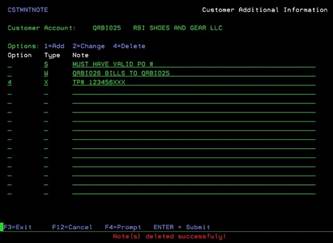
a “4” in the OPTION field and pressing ENTER will delete the note on the
selected line. There is no “second chance” to verify the deletion of this
message. It will be deleted as soon as ENTER is pressed. You will see a message
at the bottom showing “Note deleted successfully”.
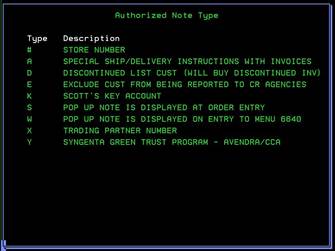
Authorized Note Type (CUSTNOTELIST)
Can be accessed by:
1.
Menu
6640, DelRT Shortcut, F9, F4
2.
Menu
6280, F4
3.
Menu
6210, 5, Customer Notes, F4
This pop up box lists all available
Note Types for customer notes. Each one has a different purpose so please
review the proper Note Type when entering new notes for a customer. This is
informational only. Press F12 or F3 to exit and enter the proper note type on
the previous
screen.
·
# - Enter Store# for this customer
·
A – Special Ship/delivery instructions to be included on
invoices. If you have a direct ship order on an Auto-PO Vendor, customer
notes with “A” will be placed on all
Direct Shipped purchase orders sent to the Vendor. This is where you
should place customer’s hours of operation, or special times for deliveries,
directions to loading dock, etc. Put
your most important information on the FIRST line of messages. Some vendors
are only capturing the FIRST line of message notes. Customer “A” Notes will be automatically placed in the
PO-F7(notes) section in the Purchase Order and sent to the Vendor for this
direct ship customer.
·
D - Discontinued list customer. They will buy discontinued
inventory.
·
E – Exclude customer from being reported to credit agencies.
·
K – Scott’s Key Account
·
S – Pop up note is displayed at Order Entry.
·
W – Pop up note is displayed on entry to Menu
6640,
Customer Credit Inquiry.
·
X – Trading Partner Number
·
Y – Syngenta Green Trust Program – Avendra/CCA