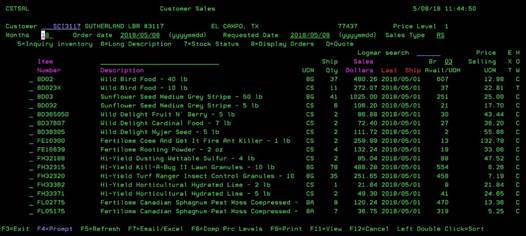
Customer Sales History (CSTSAL)
Can be accessed by:
1.
Menu
3924, F9
You must have a customer# entered at the top of the screen to see Customer
Sales History. This screen will automatically display recent sales history for your
selected customer, sorted by Last Ship Date, for past 18 months. You can change
the number of months field to anything less than 18 if desired. If you need 36
month history for an item, use Option 8 below.
·
You can enter an item description or a LOGMAR number to
further narrow this customer sales history screen. Enter the item description or logmar and hit
ENTER and then F5 to refresh.
·
The Requested Date
field at the top is significant. You can see if pricing changed on an item by
date (such as EXPO pricing) or for a given period of time
·
You can narrow the search by Sales Type if desired.
·
The BR (branch) field defaults to the branch setup in the
customer master file to show current inventory available. The Branch # can be
changed to see current inventory available at the other branches.
·
The last column, HOW,
shows how the pricing was obtained: C-Contract price, P-Promotional, T-Tiered,
O-Old pricing.
·
You can double click on the top line item for any of the PINK columns to sort by that particular column.
From
here you can choose: (5) Inquiry Inventory, (6) Long Description, (7) Stock
Status, (8) Display Orders, (Q) QUOTE, (F4) Prompt lookup on Customer#, or LOGMAR, (F5)
Refresh, (F7) Email/Excel -Automatically emails the current user an Excel
Spreadsheet containing this sales information. Check your Outlook INBOX folder,
(F8) Comp Prc Levels (only available for customers with Tier 2, 3 or 4
pricing), and (F9) Print (prints to a HOLD file).