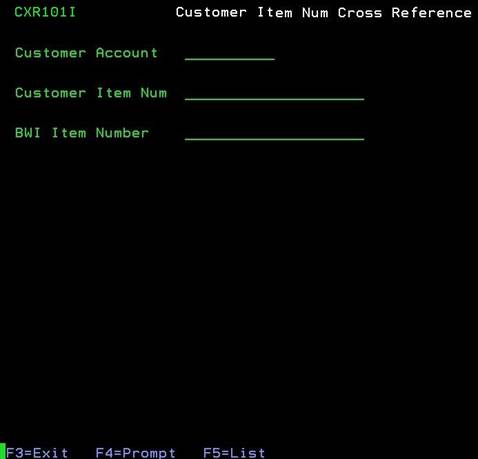
Customer Item Cross Reference Inquiry (CXR101I)
Can be accessed by:
This screen will list the items in the Cross Reference file that are necessary for EDI Customers to send/receive orders. If an item needs to be added, see Menu 1715. From here you can choose: F4 on customer acct (see SLCUSTOMER) or enter the customer account number. Once you select a customer account, you can press F5 to see the current list of items setup for that customer.
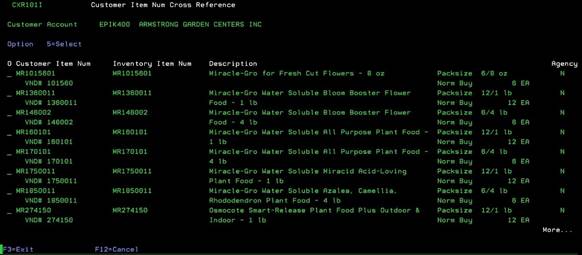
Current Customer Item List (CXR101I)
Can be accessed by:
1.
Menu 1710,
F5
This screen will list all items currently setup for the selected customer. From here you can choose: 5-select or F12 to cancel. If this screen requires correction or an item needs to be added, see Menu 1715.
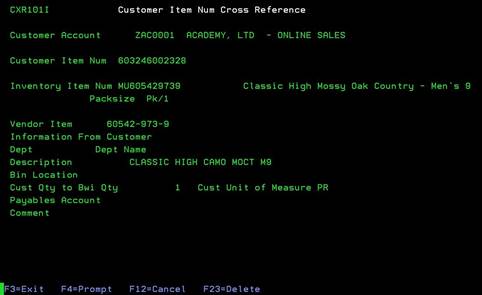
Cross
Reference Item Detail (CXR101I)
Can be accessed by:
1.
Menu 1710,
F5, 5
This screen will display the information about the current item selected. This screen is primarily for display only. However, you can delete an item from this screen using F23-delete (see SWR126) or exit with F12. If this screen requires correction or an item needs to be added, see Menu 1715.