Customer Item Cross Reference Maintenance (CXR101N)
Can be accessed by:
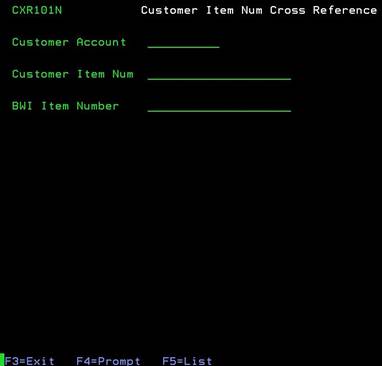
This screen will provide access to the Cross Reference file necessary for EDI Customers to send/receive orders. This does require special authorization. See your supervisor if you have any questions. From here you can choose: F4 prompt on customer acct SLCUSTOMER, or manually enter the required item numbers on all three lines to add a cross reference item. If you enter only the customer account number, you can press F5 to see the current list of items already setup for that customer.
Current
Customer Item List (CXR101N)
Can be accessed by:
1.
Menu
1715, F5
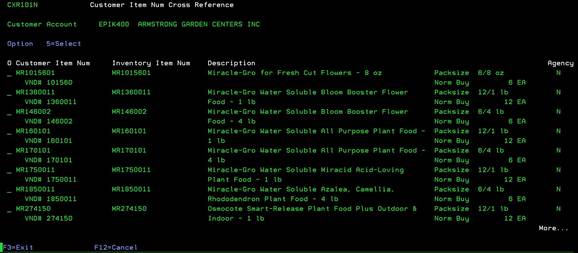
This screen will list all items currently setup for the selected customer. From here you can choose: 5-select or F12 to cancel.
Cross
Reference Item Detail (CXR101N)
Can be accessed by:
1.
Menu
1715, F5, 5
This screen will display the information about the current item selected. The correctness of this screen is very important for EDI transactions. See details below to complete this screen correctly. From here you can choose: F4-prompt on Inventory Item# Menu 3920, F23-delete SWR126 or F12 to cancel. Press ENTER to save changes.
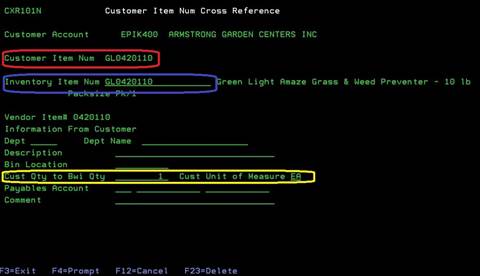
These three circled areas on this screen MUST be completed for EDI purchase orders, ship notices and invoices to work.
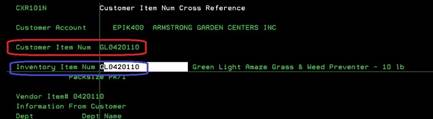
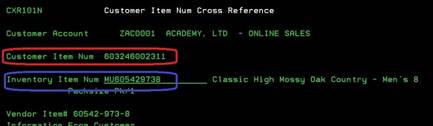
· The Customer Item Num (RED box) should contain the item number that the customer will be sending to us. This can be the UPC#, their item# or our item#. Please verify with your customer as to which item number they will be sending to us on EDI purchase orders. If this is setup by UPC#, you have less maintenance to do on this file. If this is setup by their inventory# and they later change their numbers, you will have to change the item numbers here also.
· The Inventory Item Num (BLUE box) should contain the BWI item number that corresponds with the item the customer is wanting to purchase. You can use F4 prompt on this field to search for the BWI Inventory Item# Menu 3920.
· The Cust Qty to BWI Qty (YELLOW box) is the conversion factor on how the items will be ordered. If this item contains 6 eaches in a case then you should enter 6 in the Cust Qty field and EA in the Cust Unit of Measure field. This is how the system will convert the number of eaches that the customer orders into the proper case count. If the case contains 12 eaches for this item, enter 12 in the Cust Qty field and EA in the Cust Unit of Measure field, etc. The Cust Qty field should never be 1 unless the item is only sold in Eaches (i.e. Bog Boots).
Some item# examples are shown below:
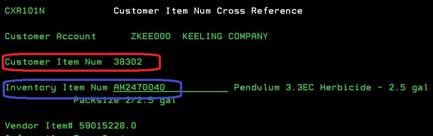
o Example with customer using our BWI Item# to order:
o Example with customer using UPC# to order:
o Example with customer using their own item# to order: