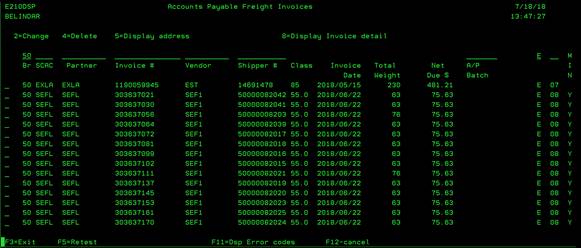
Accounts Payable Freight Invoices (E210DSP)
Can be accessed by:
1.
Menu 1605
All Motor Freight Invoices
with errors will appear on this screen. Invoices that appear on the Menu 1605 screen cannot be paid to the
Motor Freight Vendor until you approve each invoice manually. This screen should be
checked daily for Freight Invoice errors.
If
a Motor Freight Invoice appears here, you basically have two options: Manually
Approve or Delete. If the Motor Freight Invoice is acceptable, you can use the
steps below to approve. If the Motor Freight
invoice is incorrect, you must: contact the Motor Freight Carrier, dispute the
invoice, request a MANUAL, corrected invoice be sent to Accounts Payable by
email and delete the incorrect invoice from this screen with the steps listed below.
You
can filter your errors by SCAC code/Partner, freight invoice#, vendor#,
Shipper#(Pro Bill#), AP Batch or by Error Code. If you leave these fields
blank, you will see all freight invoices with errors for your designated branch. You can press F11 to see the descriptions for each
error message. From this screen, you can
choose the following options on an individual invoice: (2) Change(Approve), (4) Delete -immediately deletes the selected Freight Invoice,
(5)-Display address, or (8)-Display invoice detail. You can
also press (F5) to retest these freight invoices after you have made changes.
Invoices that have been manually approved will be removed from this screen
after F5 (retest) is pressed.
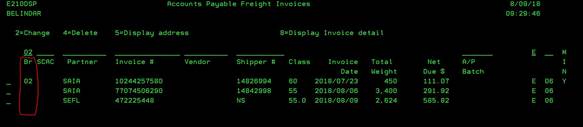
PLEASE NOTE** You can lessen the number of invoices that appear on this error screen. See Menu 1606 to setup your “acceptable variances” for automatic invoice approval for each Motor Freight Vendor. If those values are “0”, you will have to approve every invoice manually.
UNRECOGNIZED
INVOICES***
You
may see invoices listed with errors that have no “Branch#” assigned. See the
bottom two invoices shown below. These are EDI Invoices from the Motor Freight
Carrier that we do not have all necessary information. They may be missing the
BWI Order#, or a ship detail record (if they weren’t scanned into the “Ship on
Board” process correctly). These invoices will show up on every branch’s Menu 1605 screen until the right branch sees
the invoice and uses the “2” change option to enter the missing data.
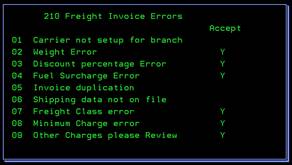
F11 -Freight
Invoice Error Codes
Can be accessed by:
1.
Menu
1605, F11
This
will give you a listing of what the available error codes mean. If you have an
error code “06”, that means there was no shipping data in Menu 56160 to
compare. Motor Freight Data was not put into WMS properly.