EDI Order
Exceptions (E850DSP)
Can be accessed by:
1.
Menu 1936
If you have
a customer that sends 850 (Purchase Orders) by EDI, you will be given this
document and access to Menu 1936. You will also be given special access to Menu 1110
to edit EDI orders for your EDI customer. The Menu 1936 screen will show you
any customer purchase orders that have been received that are incorrect in some
manner. These incorrect orders will also
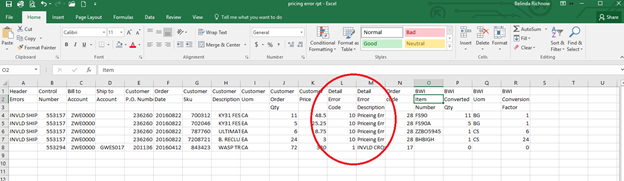
be sent via email and will continue to be sent until they are resolved (see Figure D).
If you have
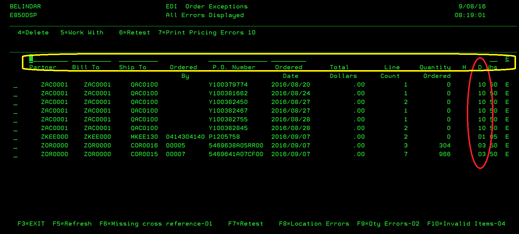
multiple EDI customers, you can use the filter options shown in Yellow to see
only selected items. You can select to see by: Partner#, Billto#, Shipto#, PO#,
Order date, Warehouse or Status code. Available status codes are: E-Error and
P-Ready to Process. The column in Red will display the Detail Error Code that
is necessary to know how to fix these errors.
Please refer
to the Detail Error Code column of
your emailed error report (see Figure
D) or the Error column of
Menu 1936 (see red column above) to see what the error code is with the current
order. The Error Code will determine what options are needed to correct the PO
error. In this screen you can view and process these Purchase Order Errors. You
will only be able to see/alter Purchase Orders for your designated EDI customers.
Occasionally, there may be other errors on this Menu 1936 screen that do not
appear in your report (i.e. new store#) but on this screen only. Please check this screen daily for errors.
If any customers appear on the screen that you do not handle, please advise
Mark Fomby & Belinda Rollins so that this can be corrected.
Cross Reference/Item# Errors (Error Codes: 1,
4, 5, 6, 7, 8, 9 & 11)
If you have a Cross reference error, the only options you
have to resolve are:
1.
Input Cross
Reference Item into customer cross reference or contract (if contract
error) for the item on the Purchase Order. Add the missing item to the customer
cross reference file using Menu 1715. After that is processed, go back to Menu
1936 (See Figure A), and place a “6” in the Option field to Retest this order and
press ENTER (See Figure C).
If the order disappears from this screen, you successfully corrected the issue.
Press F3 to exit this screen.
2.
Delete (Loss Sale) a
single line item on the order.
a.
Go to Menu 1936 (See Figure A).
b.
To delete a single line item, place a “5” in the Option field beside the order you wish
to modify and press ENTER (See Figure
B). This will allow you to “work with” that particular order.
c.
The line with the error should be first and highlighted in RED. If you wish to delete this line, place a “D” to
Loss Sale this item and press ENTER (See Figure C). It will be removed from the order and
the rest of the items will be processed. Deleted
items cannot be re-retrieved once they are deleted. Press F3 to exit
this screen and return to main screen. Place a “6” in the Option field to retest this order and press ENTER (See Figure C). If the order
disappears from this screen, you successfully corrected the issue. Press F3 to
exit this screen
d.
You must inform your customer that this line item has been
deleted and a new order should be sent with the correct item number for that
particular item. You will be responsible
for any quantity/pricing issues that arise from this order.
3.
Delete (Loss Sale) the
entire order.
a.
Go to Menu 1936 (See Figure A).
b.
To delete an entire order, place a “4” in the Option field beside the order you wish
to delete and press ENTER (See Figure
B). Entire order will be deleted. Deleted orders cannot be re-retrieved once
they are deleted. Press F3 to exit this screen.
c.
You must inform your customer that this order has been
deleted and a new order should be sent with corrected item numbers. We would
prefer a new PO# for the new order. Otherwise, you will be notified when a
“duplicate PO#” is received and you will have to verify if it should be used or
deleted from system at that time. You
will be responsible for any quantity/pricing issues that arise from this order
or lack thereof.
Quantity Errors (Error Code 2 or 3)
If you have a Quantity error, the only options you have to
resolve are:
1.
Accept Order “as
is”.
a.
Go to Menu 1936 (See Figure A).
b.
To accept a single line item “as is”, place a “5” in the Option field beside the order you wish
to modify and press ENTER (See Figure
B). This will allow you to “work with” that
particular order.
c.
The line with the error should be first and highlighted in RED. If you wish to accept this item “as is”, place an
“A” on that line and press ENTER (See Figure C). The item will be
automatically adjusted to the next available quantity pack available. Press F3
to exit this screen and return to main screen. Place a “6” in the Option field to Retest this order and
press ENTER (See Figure C). If the order disappears from
this screen, you successfully corrected the issue. Press F3 to exit this
screen.
d.
You must inform your customer that this line item quantity
has been adjusted. You will be
responsible for any pricing/quantity issues that arise from this order. You
may also adjust order quantities in Menu 1110 for this particular order if
necessary.
2.
Delete (Loss Sale) a
single line item on the order.
a.
Go to Menu 1936 (See Figure A).
b.
To delete a single line item, place a “5” in the Option field beside the order you wish
to modify and press ENTER (See Figure
B). This will allow you to “work with” that
particular order.
c.
The line with the error should be first and highlighted in RED. If you wish to delete this line, place a “D” to
Loss Sale this item and press ENTER (See Figure C). It will be
removed from the order and the rest of the items will be processed. Deleted items cannot be re-retrieved once
they are deleted. Press F3 to
exit this screen and return to main screen. Place a “6” in the Option field to retest this order and
press ENTER (See Figure C). If the order disappears from
this screen, you successfully corrected the issue. Press F3 to exit this
screen.
d.
You must inform your customer that this line item has been
deleted and a new order should be sent with correct quantity for that
particular item. You will be responsible
for any quantity/pricing issues that arise from this order.
3.
Delete (Loss Sale)
the entire order.
a.
Go to Menu 1936 (See Figure A).
b.
To delete an entire order, place a “4” in the Option field beside the order you wish
to delete and press ENTER (See Figure
B). Entire order will be deleted. Deleted orders cannot be re-retrieved once
they are deleted. Press F3 to exit this screen.
c.
You must inform your customer that this order has been
deleted and a new order should be sent with corrected quantities. We would
prefer a new PO# for the new order. Otherwise, you will be notified when a
“duplicate PO#” is received and you will have to verify if it should be used or
deleted from system at that time. You
will be responsible for any quantity/pricing issues that arise from this order
or lack thereof.
Pricing Error (Error Code 10)
If you have Pricing error, the only options you have to
resolve are:
1.
Accept Order “as
is”.
a.
Go to Menu 1936 (See Figure A).
b.
To accept a single line item “as is”, place a “5” in the Option field beside the order you wish
to modify and press ENTER (See Figure
B). This will allow you to “work with” that
particular order.
c.
The line with the error should be first and highlighted in RED. If you wish to accept this item “as is”, place an
“A” on that line and press ENTER (See Figure C). The item will be
automatically adjusted to the BWI price for this customer. Press F3 to exit
this screen and return to main screen. Place a “6” in the Option field to Retest this order and press ENTER (See Figure C). If the order disappears from
this screen, you successfully corrected the issue. Press F3 to exit this
screen.
d.
You must inform your customer that this line item price has
been adjusted. You will be responsible for any pricing/collection issues that arise
from this order.
2.
Delete (Loss Sale) a
single line item on the order.
a.
Go to Menu 1936 (See Figure A).
b.
To delete a single line item, place a “5” in the Option field beside the order you wish
to modify and press ENTER (See Figure
B). This will allow you to “work with” that
particular order.
c.
The line with the error should be first and highlighted in RED. If you wish to delete this line, place a “D” to
Loss Sale this item and press ENTER (See Figure C). It will be
removed from the order and the rest of the items will be processed. Deleted items cannot be re-retrieved once
they are deleted. Press F3 to exit this screen and return to main screen.
Place a “6” in the Option field to
Retest this order and press ENTER (See Figure C). If the order disappears from this screen, you
successfully corrected the issue. Press F3 to exit this screen.
d.
You must inform your customer that this line item has been
deleted and a new order should be sent with correct pricing for that particular
item. You will be responsible for any
quantity/pricing issues that arise from this order.
3.
Delete (Loss Sale)
the entire order.
a.
Go to Menu 1936 (See Figure A).
b.
To delete an entire order, place a “4” in the Option field beside the order you wish
to delete and press ENTER (See Figure
B). Entire order will be deleted. Deleted orders cannot be re-retrieved once
they are deleted. Press F3 to exit this screen.
c.
You must inform your customer that this order has been
deleted and a new order should be sent with correct pricing. We would prefer a
new PO# for the new order. Otherwise, you will be notified when a “duplicate
PO#” is received and you will have to verify if it should be used or deleted
from system at that time. You will be
responsible for any quantity/pricing issues that arise from this order or lack
thereof.
Figure A - Menu option 1936
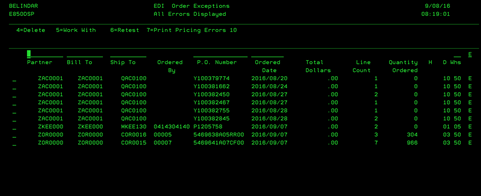
Figure B – Options field on Menu option 1936
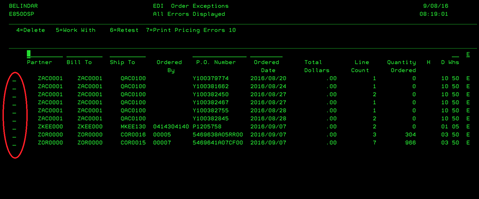
Figure C – “5” Work with order option
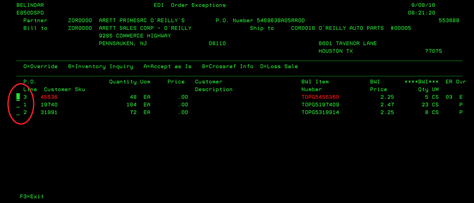
Figure D - Emailed Error Report: