Accounts
Payable EDI Invoices Overview
The Accounts Payable EDI program processes vendor invoices with any
vendors that are set up to send their invoices thru EDI. The EDI program will
receive the EDI data, convert it into the BWI AS400 database, and check the
data against the Purchase Order for any discrepancies. Hard copy images of the
EDI invoice are sent to the RVI imaging system, along with the associated
purchase order.
There are two main categories of EDI invoices:
No Errors - If
an invoice is received with no errors the following will Automatically
occur:
1.
Warehouse Order (once received)- The system will do the
following:
i.
Add the invoice to the Accounts Payable system for
batch posting. Can be seen on Menu 5990 Screen.
ii.
Send email to Accounts Payable as invoices are
added.
iii.
Update the RVI system with the EDI Invoice and Final
Purchase Order (with any changes made)
2.
Direct Ship Order – The system will automatically
complete the AP process mentioned in (1) above in addition to the following:
i.
System will bill the customer and create the customer
invoice and Accounts Receivable entries:
1.
Billing via regular mail - If the customer receives
their invoice via USPS, the hardcopy will print at the corporate office and be
processed for mailing.
2.
Email or EDI - If the customer receives their invoice
by email or EDI, the invoice will automatically be sent.
ii.
Update RVI with customer DS invoice.
An Email will be sent to the
associated buyer notifying them that the customer invoice has been
automatically processed.
Errors - If
an invoice is received with errors, the following will occur:
1.
The invoice is held in the processing file for
correction (see Menu 4190). An
Email is sent to the associated buyer and to the Accounts Payable Clerk with
the error message and a PDF copy of the invoice with the errors listed.
Note:
While the invoice is in ‘error’
status, the Vendor invoice will not be processed or paid, and if this is a
Direct Ship order, the customer will not be automatically billed.
Everything is waiting for action to be taken by the associated buyer.
a.
Not Received error - If the only error found is that
the product has not been received, the invoice is flagged as a ‘receive error’,
but no Email will be sent to the associated buyer. When the product is
received, the invoice is re-checked for errors and processed accordingly.
b.
PO
Cost Variance - If an invoice is received with a variance between the vendor
invoice costs and the Purchase Order costs, the invoice will be sent to the AP
Buyer’s Variance Screen (Menu 5120) to be corrected by the buyer like any other
invoice.
Note: This may require an
option “8” in Menu 4190 to push the invoice to Accounts
Payable-Variance. The program will then ask the user to verify that
they want to send the invoice with a variance.
Note: I.T.
will run the posting process automatically periodically during the day. I.T. is constantly improving on this Menu
4190 process. Please check the F1 help key for the most current version of this
help document.
AP EDI Invoices Received
(EDI810DSP)
Can be accessed by:
·
Menu 4190
The AP EDI Invoices Received Screen displays all EDI invoices received from our Vendors. This screen is quite comprehensive and is the “hub” of the EDI invoice processing. This menu option shows: invoices with errors, invoices processed, links to purchase orders and RVI invoice images and much more.
By default, the AP EDI Invoices Received Screen displays all Vendor
Invoices received via EDI with errors that have not been processed into the
Accounts Payable system that are assigned to the Branch/Twig associated
with your User ID. You can only process
invoices created by your Branch/Twig. If the purchase order was created at the
Corporate office, you can view in Inquiry Mode only (see PINK option notation
below).
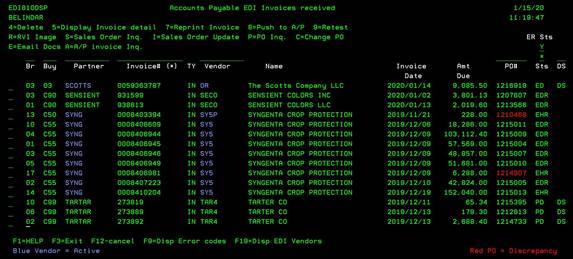
COLORS ON EDI810DSP SCREEN:
Blue
Vendor: If
the Partner ID and vendor code are displayed in Blue, this vendor is active in the
Accounts Payable posting process. These
invoices will be posted to Accounts Payable and billed to the customer by the
EDI invoicing programs. F19 (shift-F7) will display a
list of the active EDI vendors.
Green Vendor: If
the vendor is not displayed in blue, it is in the process of testing. We are receiving invoices via EDI to verify
the data and to get familiar with how they send invoices. However, these
invoices will NOT be moved into Accounts Payable or billed to the
customer. If you receive a hardcopy or
Email invoice from this vendor, continue to process manually as before, until
notified that this vendor is going live. F19 (shift-F7) will display a
list of the active EDI vendors.
Red PO#: If the PO (purchase order) is shown in Red, there is a some sort of receiving discrepancy
associated with it. If a discrepancy report is created when the product is
received into inventory, a notification will be included in the Email to the
buyer when the invoice is first received and added to the processing
files.
PINK Underline Option: If the Option Field to the left of the invoice line is not green, but PINK, you are not the original buyer or Branch for this order. The Branch/Twig users may not make any changes to the invoice, or the Purchase Order and Sales Order thru the Menu 4190 screen. They will also not be allowed to push an invoice to Accounts Payable. This option allows Branch/Twig users to inquire into the EDI invoice detail (including any processing notes), Purchase Order, or Direct Ship Sales Order that they did not originally enter.
TOP FIELDS – SEARCH/FILTER CRITERIA (EDI810DSP SCREEN):
By default, the AP EDI Invoices Received Screen displays all Vendor
Invoices received via EDI with errors that have not been processed. From
the main screen, you can search/filter for items by Branch, Buyer#,
Vendor Partner, Invoice#, Vendor Code, PO#, Sts
(status) or DS(direct ship). Field descriptions and usage is explained below. Most
search/filter options can be combined with other search selections.
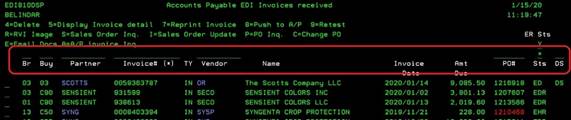
Br
field: This gives you the option to
see EDI vendor invoices by branch location. If the Purchase Order was entered
from a branch location (not corporate), anyone at the branch with Menu 4190 can view all the branch’s invoices,
regardless of Buyer code.
Buy
field: This gives you the option to
sort EDI vendor invoices by the Buyer number.
This is the default setting for most users entering the Menu 4190
screen.
Partner
field: This gives you the option to
sort EDI vendor invoices by the EDI Trading Partner name. If you want to see all of your EDI vendor
invoices for just Scotts, enter “SCOTTS” in this field.
Invoice#
field: This gives you the option to
sort EDI vendor invoices by the Vendors invoice number. If you are looking for a particular invoice,
this may be your best search option. The invoice number selection also
has the ability to search by entering a partial number. Enter the first part of the invoice number
followed by an “*”. All invoices
that begin with the entry will display.
Vendor#
field: This gives you the option to
sort EDI vendor invoices by the Vendor number. You also have the option to view only the
invoices for vendors that are active into Accounts Payable processing. Enter ‘ACTIVE’ as the vendor
code. This will shorten the list to
only invoices for active vendors.
PO#
field: This gives you the option to
sort EDI vendor invoices by the BWI Purchase Order# in the WMS system.
Sts field: The “status”
field can be used to sort the different invoice statuses. This defaults to “*”
to show all open status invoices. You
can use this field to sort invoices for viewing as follows:
·
“D” – displays deleted invoices
·
“P” – displays invoices that are pending (ready to go to
Accounts Payable)
·
“X” – displays invoices that have already been processed into
Accounts Payble
·
“E” – displays invoices with errors
·
“*” – displays all open invoices
·
“A”- displays all invoices for the requested invoice or PO,
regardless of invoice status.
·
“ “ (blank) - displays invoices
with no errors (these will move to Accounts Payable at next automatic
cycle). These will be the invoices most
recently received or fixed g is in effect, the only invoices waiting with no
errors should be the invoices just received or fixed since the last automatic
posting
DS
field: This gives you the option to
sort EDI vendor invoices by the invoices that are for Direct Ship orders.
ER Sts field: Defaults to “Y”
and shows invoices that have not yet been received as their only error. To
ignore the “ER” errors on the display, enter a “N” in this field.
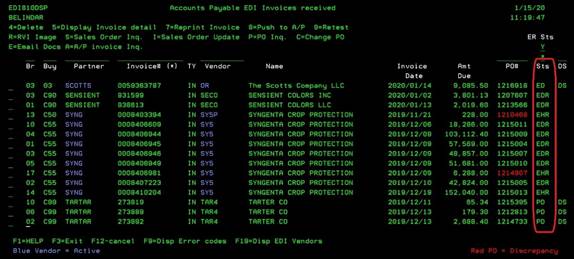
INVOICE STATUS FIELD (EDI810DSP SCREEN):
Sts field: The STS codes will give you an
insight as to the status of each of the invoices.
·
“ “(blank) -
This invoice has no errors and will post on the next automatic cycle.
·
EH or EHR- This invoice has a Header error, such as bad
terms, invoice already posted, or the invoice total does not balance. “R” in
the third character position means the items have been received.
·
ED or EDR–
This invoice has one of more Detail line errors, such as price mismatch, or
wrong item#. “R” in the third character position means the items have been
received.
·
ER –
This invoice has not yet been received. No errors to note at this time. To
ignore the “ER” errors on the display, enter a “N” in the field labeled “ER sts” above the status
column. The invoices that are waiting on
Receiving Documents will be re-assessed once they are received.
·
PD or PDR –
Pushed into Accounts Payable for processing
·
DH or DHR
or DD or DDR or DRR – Invoice has been deleted. Must be processed manually*
·
X or XH or
XD –
Processed in Accounts Payable – fully completed*
·
R – “R” in the third
character position means the items have been received.
*Deleted or Completed items only
appear if you enter “D” or “X” in the STS filter at top right corner of screen.
FUNCTION KEYS (EDI810DSP SCREEN):


F1
Key: Pressing F1 Help key will display
this content for viewing, without having to access Sharepoint.
F3
Key or F12 Key:
Pressing F3 or F12 keys will leave the 4190 screen and return
to Main Menu.
F9 Key: Pressing F9 will display the listing of error codes. This is a
display only popup screen. Press F3 to exit this popup screen. Some
error codes will only apply to certain vendors and/or customers. Click Here
to see the listing of Error Codes and how to resolve.
F6
Key: The F6 key will allow the user to Sort the
list by any column that they need. To
select a column to sort on, click the
mouse on the column, then press F6.
The
EDI Trading Partner will allows be the primary sort, followed by the selected
column. When a column is selected for
sorting, the column header will display in REVERSE image.
To
return to the default sort setting, click on the invoice number column (the
default sort) and press F6. All column
selections will still apply when the display is sorted.
The
buyer code and invoice type columns do not have sort capability.
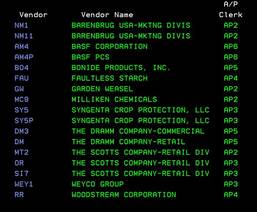
F19
Key: Pressing Shift & F7 (F19) will
display all of the EDI Vendors that are currently setup for LIVE Invoice
processing. This is a display only popup screen. Press F3 to exit this popup
screen.
SELECTION/ACTION OPTIONS (EDI810DSP SCREEN):
When an EDI invoice has errors, actions MUST be taken by the Buyer accordingly to process the invoice. The Invoice will NOT be sent to accounting until the buyer takes action on the invoice. The options located at the top of the screen can be entered beside a specific invoice to do the following actions:

4 =
Delete -
To remove an invoice before it is posted into Account Payable.
Note:
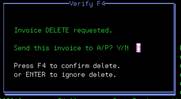
If an invoice is requested to be deleted, a confirmation screen will display
before deleting. When an invoice is
deleted, the delete confirmation screen will ask if the invoice should be sent
to Accounts Payable for manual entry. A ‘Y’ entry will Email a PDF copy of the
invoice to the appropriate Accounts Payable clerk with a note that the invoice
may need to be entered manually. This
may be necessary when the invoice has a problem and can not be processed thru
the automatic system. No changes are
allowed after an invoice is posted or deleted.
5 = Display Invoice Detail (EDI810DTL) -
To display the full information about the invoice, including all detail lines.
The RED items will be the areas with PO
discrepancy. Click here to access the
Accounts Payable EDI Invoice Details (EDI810DTL) screen below for complete
instructions.
7 = Reprint Invoice -To
print a hardcopy of the received invoice.
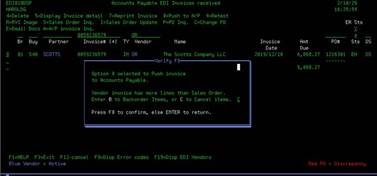
8 = Push to A/P – This option allows you to
override some errors and send the invoice to Accounts Payable. It will post on the next automatic posting
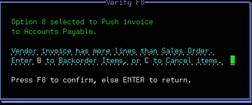
cycle. If an order is requested to be overridden, a confirmation popup screen
will display before the override is saved. Certain error conditions cannot be
overridden such as “Invoice already posted to A/P”, or “Not yet received”. If
this invoice cannot be “pushed”, you will receive a message to that effect. If
the error is “Invoice already posted to A/P”, you can delete the duplicate
invoice.
Note: If the invoice is for a Direct Ship order and
not all of the items on the order have been invoiced, the confirmation screen
will ask if the un-invoiced(unshipped) items should be backordered to a
separate Sales Order, or if the items should be canceled from the original
Sales Order. Enter a “B” to backorder the items or “C” to cancel.
9 =
Retest – This option allows you to check the invoice for errors again. This can be helpful when corrections are
made to the corresponding purchase order.
This reset option will NOT resend the error notification via Email. The Retest only checks to see if any errors
still exist for the invoice. The error
notification only sends the Email on the initial invoice receipt. If you need
the error notification email resent, see option ‘Z’ below.
Note: All pending invoices be automatically
retested periodically during the day by I.T.
R = RVI - If you have the RVI client on
your computer, option ‘R’ will display the received invoice from the RVI
system.
S = Sales Order Inq -
For Direct Ship invoices, option ‘S’ will display the corresponding BWI sales
order in Customer Order Inquiry (See Menu 1910).
I = Sales Order Update -
For Direct Ship invoices, option ‘I’ will allow you make changes to the Direct
Ship sales order (see Menu 2100).
P = PO Inq -
To display the purchase order for the EDI invoice in Purchase Order Inquiry
(See Menu 4910).
C = Change PO - Option ‘C’ will allow for changes
to be made to the associated Purchase Order in Purchase Order Entry (See Menu
4110).
E = Email Docs - Option ‘E’ will create a PDF
file of all documents related to this Purchase Order and Email the PDF file to
your mailbox.
Note: There could be a large number of documents in
the PDF file, as all documents related to this Purchase Order will be
included; including other invoices and
receipts.
A = A/P Invoice Inq -
If authorized, option ‘A’ will allow the user to review the invoice in Accounts
Payable after it is posted in Accounts Payable Invoice Inquiry. (See APR120/CTL)
Z =
Retest with Email option – This is a hidden option that will retest the invoice
AND resend the error notification to the associated buyer (if the invoice has
errors). This is useful if the initial
Email is lost or accidentally not sent. Option ‘9’ above only does the check
for invoices errors without the email feature.
ACCOUNTS PAYABLE EDI INVOICE DETAIL (EDI810DTL):
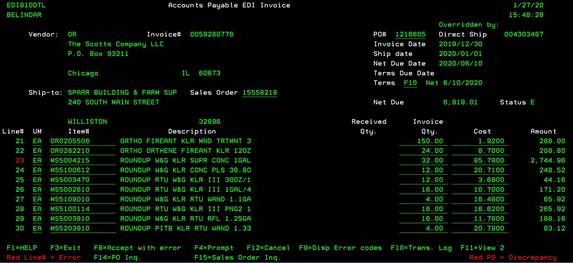
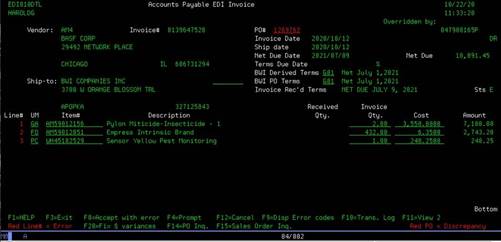
The Accounts Payable EDI Invoice screen displays the detailed information
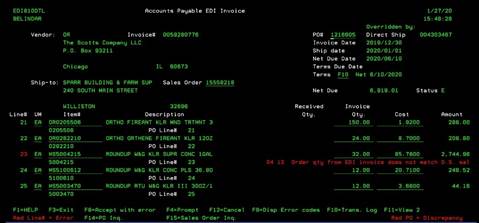
for the requested invoice. The display will open in single line mode. Using the
F11 function key (listed below) will expand the detail lines to reveal errors.
There are colors on the display to help assist with the areas where
discrepancies may exist.
NOTE:
It is the buyers responsibility to determine if the Purchase Order needs to be
corrected or if the Vendor Invoice is incorrect.
COLORS ON EDI810DTL SCREEN:
Red Purchase Order#- The
Purchase Order has some sort of receiving discrepancy associated with it. A discrepancy does not necessarily mean the
invoice will error, but may give a reason for an error.
Red Invoice Line#- The
Invoice line has some sort of error.
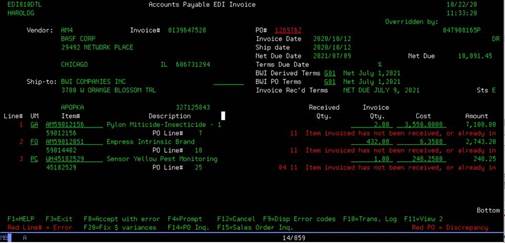
Press F11 to expand the detail lines and the error description will
display. Pressing F11 again, will return the display to single line mode.
FUNCTION KEYS (EDI810DTL):

F1
Key: This will display this USER
DOCUMENTATION content for viewing without having to access Sharepoint.
F3/F12
Key: This will leave the EDI Invoice
Detail screen and return to the previous Accounts Payable EDI Invoices screen.
F4
Prompt: On certain fields (i.e.
TERMS), pressing F4 will display listing of valid options for that particular
field.
F8
Accept with Error:
Press F8 if an invoice has an error, but it is determined that
the invoice can still be posted and sent to Accounts Payable. It will post on the next automatic posting
cycle. Certain error conditions can not
be overridden, such as “Invoice already posted to A/P”, or “Not yet
received”. If an order is requested to
be overridden, a confirmation screen will display before the override is saved. If this invoice cannot be “pushed”, you will
receive a message to that effect.
Note: Once
an invoice has been overridden to accept, it can not be reversed.
Note: During
the invoice posting into Accounts Payable, if a variance is determined, an
Email will be sent to the buyer on the Purchase Order notifying them of the
variance. This will be similar to the variance Email that are sent now when a
variance is created in the invoice entry program (Menu 5110).
F9
Dsp Error Codes:
This will display the error list popup box. Press ENTER to exit this popup screen. Some
error codes will only apply to certain vendors and/or customers. Click Here
to see the listing of Error Codes and how to resolve.
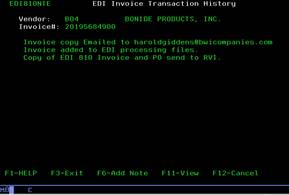
F10
Trans Log: This will display the Transaction
History Log of all changes/actions made to this EDI Invoice in single line
mode. It also allows entry of any necessary notes- see note below. You can
press F11 to expand the detail lines and the details will display. Pressing F11 again,
will return the display to single line mode.
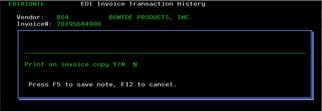
F6 (inside Trans Log) -You can press F6 to add a
manual note to this screen (i.e. confirmation number or reason for changes). A
window will open to allow for the entry of any information to be saved with the
EDI invoice. To include the notes on subsequence invoice copy prints, enter a
“Y” in the “Print on invoice copy Y/N” field.
A “N” entry will save the note but not print on the invoice copies. When
you are finished entering the notes for the invoice, press F5 to save, or F12
to cancel without saving.
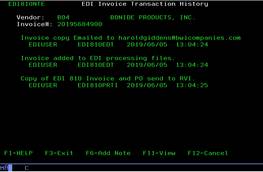
F11 (inside Trans Log) -You can press F11 the display will show date/time/user
for each Log entry. Pressing F11 again will return to single line entry view.
F11
View 2: This will expand the detail lines and the error description details will
display. Pressing F11 again, will return the display to single line mode.
F14
-PO Inq: This will display the purchase order for the EDI
invoice in Purchase Order Inquiry (See Menu 4910).
F15
-Sales Order Inq: This will display
the corresponding BWI sales order in Customer Order Inquiry (See Menu 1910).
F20
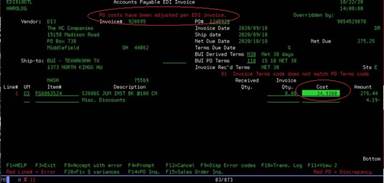
-Fix Dollar Variances (New Feature): If
the Vendor invoice item cost and Purchase order item cost are different, this
option will automatically adjust the Purchase Order costs to match the costs on
the vendor invoice. This will eliminate any costs variance errors and prevent
the buyer from having to fix the variances in Menu 5120. Use this option
if you have determined that the costs on the vendor invoice are the correct
costs to value the inventory items. When you press F20, a confirmation box will
display to verify the updates. Press F20 again to confirm or
press ENTER to return to the invoice detail display.
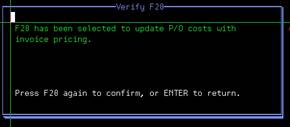
After
pressing F20, the program will update all Purchase Order lines that can be
determined. The lines that updated its
corresponding Purchase Order line will re-display with the cost displayed in
reverse image. If the Purchase Order cost for a line cannot be determined, such
as UOM conversion problems, the invoice cost will not display in reverse image,
and the Purchase Order cost will not update. These Purchase Order
lines may need to be changed manually.
NOTE: If an invoice is received
with a miscellaneous discount, the F20 option is not
available. This is because some vendor Purchase Orders have
the discount already applied to the line item cost,
and the invoice may have the discount as a separate line on the
invoice. If you attempt to update the Purchase Order costs for an
invoice with a discount line, the message ‘Invoice has discount, PO cost
updates are not allowed’ is displayed. The costs on the
Purchase Order can still be updated manually.
ACCOUNTS PAYABLE EDI INVOICE DETAIL ERRORS (EDI810DTL):
Once
you have the Vendor Invoice Detail screen shown and press F11 to see the error
detail listing, you can determine what needs to be done
to process this invoice. Some error codes will only apply to certain vendors
and/or customers. A ‘Y’ to the right of the
error description means this error can be ignored and the invoice pushed to
Accounts Payable. Click here to see the listing of Special Vendor situations and
how to resolve.
NOTE:
It is the buyers responsibility to determine if the Purchase Order needs to be
corrected or (if possible) the Vendor Invoice needs to be corrected by the
Vendor.
After pressing F11 key
LINE ERRORS AND HOW TO CORRECT:
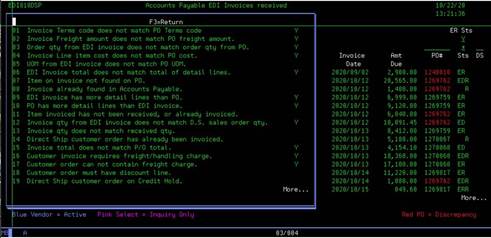
01 Invoice Terms code does not match PO Terms Code- The Purchase order terms need to be adjusted (if incorrect) or have the Vendor send a PDF Invoice with correct terms to Belinda or Harold for manual correction.
02 Invoice Freight amount does not match PO freight amount- This error can be ignored and the invoice pushed to Accounts Payable using F8.
03 Order qty from EDI invoice does not match order qty from PO- If the Invoice quantity is less than the purchase order qty, this can be ignored using F8. If the invoice quantity is MORE than the Purchase order quantity, this will need to be deleted and sent to Accounts Payable for manual review. This error may be ignored (check quantities) and the invoice pushed to Accounts Payable using F8.
**New revision: If the EDI invoice detail line extension (qty *cost) equals the Purchase order line extension amount (qty *cost), the UOM and quantity errors will be ignored and allow the line to process into Accounts Payable using F8 (if a warehouse order). All data posted in the data files will be based on the UOM and QTY from the Purchase Order.
04 Invoice Line item cost does not match PO cost- The Purchase order cost needs to be adjusted or a new Vendor Invoice sent. This error can be ignored and the invoice pushed to Accounts Payable using F8 (will go into ‘variance’. Or use new F20 feature to automatically adjust the PO cost to match the Invoice cost and avoid ‘variance’ issues.
05 UOM from EDI invoice does not match PO UOM- The Purchase order UOM or Vendor UOM needs to be adjusted (Unit of Measure: EA, CS, PK). This error may appear and the UOM can be changed on the Invoice details screen.
**New revision: If the EDI invoice detail line extension (qty *cost) equals the Purchase order line extension amount (qty *cost), the UOM and quantity errors will be ignored and allow the line to process into Accounts Payable. All data posted in the data files will be based on the UOM and QTY from the Purchase Order.
06 EDI Invoice total does not match total of detail lines- The Invoice detail lines does not add up to the Invoice total amount. You will need to get a PDF copy of this invoice to see what the detail lines should be and see if any charges/credits are missing from the EDI invoice. You can send this Vendor PDF Invoice to Belinda or Harold for manual correction.
07 Item on invoice not found on PO- The invoice item is missing from the purchase order. Please add the item to the purchase order. If this item was a replacement for another item, please remove the other item as well.
08 Invoice already found in Accounts Payable- This invoice is already found in the Accounts Payable records. This invoice should be deleted from the Menu 4190 screen automatically. If this is a DS customer order, will have to invoice the customer sales order manually.
09 EDI Invoice has more detail lines than PO- The Purchase order items need to be added if received. This error can be ignored and the invoice pushed to Accounts Payable using F8.
10 PO has more detail lines than EDI Invoice- This only occurs with Direct Ship orders. The Purchase order may need adjusting. A pop-up box will give you the option to create a backorder for the unshipped portion (if the Vendor allows backorders) or cancel the unshipped items off of the Purchase Order and Sales Order to make them balance to the vendor invoice. This error can be ignored and the invoice pushed to Accounts Payable using F8.
11 Item invoiced has not been received- Nothing is necessary to do to this EDI Vendor Invoice at this time. Once the product is received, the system will automatically re-check for any additional errors and will make new error notations if necessary.
**Exception** Sometimes this is a duplicated Invoice and should be deleted. Please check with your AP clerk to see if that is the case.
12 Order qty from EDI invoice does not match DS sales order qty- The Purchase order may need adjusting (or checked for backordered items with Vendor). If you adjust the Purchase Order, you will also need to adjust the DS Sales Order as well. If this was a back-ordered Sales order, see below to learn how to fix this invoice. This error can be ignored and the invoice pushed to Accounts Payable using F8.
13 Invoice qty does not match received qty- The received qty needs to be verified. The Purchase order may need adjusting to match the received qty (unless there is another shipment coming with remaining items). If the discrepancy is verified, you will need to delete this invoice and send to AP for discrepancy processing.
14 Direct Ship customer order has already been invoiced-
If the Sales Order has been invoiced already, it will not pass the 4190 checking and must be handled manually (unless this was a customer sales back-order from a split-off).
If this was a back-ordered Sales order, see below to learn how to fix this invoice.
If not a back-ordered item, you
will need to delete this invoice and send it to A/P. Notify the A/P clerk to
see if the vendor invoice is already in A/P. If not, then A/P
should enter it manually.
15 Invoice total does not match PO Total- The Purchase order may need adjusting. It is possible that the Vendor is shipping the purchase order on multiple invoices/orders and the line items will only partially match. If this is the case and items have been received, you can push this Vendor Invoice manually to Accounts Payable. This error can be ignored and the invoice pushed to Accounts Payable using F8.
16 Customer invoice requires freight/handling charge- This is a special error (Bogs Boots, etc.) for customer orders that require the addition of a Freight charge on the customer invoice. Once the Freight Charge is added this error should be cleared. This error can be ignored and the invoice pushed to Accounts Payable using F8.
17 Customer order cannot contain freight charge- This usually means that the Customer Invoice already contains a freight charge. If you don’t remove the freight charge on the customer order, they will be double charged for freight. If these are two different freight charges and the customer should pay both, you can push the invoice through (F8) and the customer will be billed both freight charges. If they should only have one, remove the freight amount on the customer order and the Vendor Freight amount will be carried to the customer order automatically. This error can be ignored and the invoice pushed to Accounts Payable using F8.
18 Customer order must have discount line- This is a special error (Scotts) for customer orders that require the addition of a Discount Line on the customer invoice (ZZOR7 line entry). Once the Discount Line is added this error should be cleared.
19 Direct Ship customer order on Credit Hold- This means that the Customer is on Credit Hold and the Direct Ship invoice cannot be generated. Please get with Credit Department about resolution. Once the Credit Hold is removed, this error should be cleared.
20 Sales Order is not Direct Ship (DS)- This means that the Sales Order attached to the PO is not a Direct ship order. This is a rare occurrence when a customer order was not linked to the PO correctly.
21 Sales
Order margin above margin maximum percentage- This is a special error
(Bogs Boots) for invalid price margin that require a
price correction. This
error can be ignored and the invoice pushed to Accounts Payable using F8.
22 Invoice has multiple discount lines- This error occurs if there is a Miscellaneous Discount AND a trade discount. Buyer can push this invoice through and the invoices will credit with both discounts. This error can be ignored and the invoice pushed to Accounts Payable using F8.
23 Invoice qty from EDI invoice is great than DS sales order qty- This error is on DS orders only. This shows that the Vendor quantity shipped is MORE than what we placed on the customer sales order. The buyer needs to determine which quantity is correct. If the vendor invoice is correct, the buyer should correct sales order and purchase order. If the vendor invoice is wrong, the buyer should contact vendor for a new invoice and delete this one.
24 Invoice cost greater than Sales Order sales amount. Negative margin (Future change) -This error is on DS orders only. This warns the buyer when we paid more for an item than we sold it for. Sometimes this is valid as there could be rebates or discounts that affect the negative margin. If the invoice is OK, you can push this invoice using F8. This error can be ignored and the invoice pushed to Accounts Payable using F8.
25 Direct Ship Customer order is deleted -This error is on DS orders only.
26 PO should have discount line with discount amount -This error checks invoices for specific vendors that include a miscellaneous discount line on their invoices. When a miscellaneous discount is included on the vendor invoice, a corresponding discount line must be entered on the PO.
27 Invoice from vendor requires a discount entry -This error checks invoices for specific vendors that the invoice has a miscellaneous discount line on the vendor invoice.
28 Item on more than 1 invoice line or PO line -This error means that the same item is on either Invoice or PO more than once. This makes it difficult to know which line to apply this invoice item towards. The best fix is to combine any duplicated items into ONE line on the PO and delete the extra line item. If the duplicated line is on the Invoice, you will have to contact IT for manual intervention.
29
Quantity invoiced is not a divisible quantity for PO order UOM. – This error is to
check for even units invoiced when the invoiced UOM is not the same as the PO uom. For example,
an
item is invoiced in EACHES, but PO is in CASES (or PALLETS), and EACHES is not a full CASE (or PALLET). This error causes problems when trying to tie the invoice to the receiver.
All EDI Invoices that are “manually pushed” into Accounts Payable using F8 will appear on the VARIANCE SCREEN (5120) for further correction.
Available User Invoice changes:
There is some information on the EDI invoice that can be changed by the
user.
Header Level Changes:
·
Terms Code
·
Purchase Order number
·
Sales Order number for Direct Ship orders
Detail Line Changes:
·
BWI Item number
·
Unit of Measure
Note: The
Direct Ship Sales Order may need to be changed if the wrong Sales Order is
associated with this Purchase Order.
This situation may occur if the vendor invoice is for a Back-ordered portion of an original
order. The back-order vendor invoice may
initially be associated with the original Sales Order.
Terms Code Explanation:
The
invoice detail screen will display the terms codes used to determine the due
dates and applicable discounts available on the invoice.
·
BWI
Derived Terms -the
terms determined from the EDI invoice. These are the terms that will
be applied to the invoice when the invoice is passed into Accounts Payable.
·
BWI
PO Terms -the
terms code as entered on the BWI Purchase Order.
·
Invoice
Rec’d Terms -the
description of the terms as received from the vendor.
NO
MATCH - If the BWI Derived Terms from the vendor invoice do not match the terms
from the BWI Purchase Order, an error is recorded and
the invoice will not post to Accounts Payable.
·
If
it is determined that the vendor terms are correct, the Purchase Order terms
can be changed from this screen by keying the invoice terms over the BWI terms
and pressing ENTER.
·
If
it is determined that the vendor terms are NOT correct, the vendor will need to
be contacted to resolve the issue. The EDI invoice may need to be
deleted and processed manually by Accounts Payable. The buyer should
work with the Accounts Payable clerk to determine the correct course of action.
Item number determination:
Different vendors include the product item numbers differently. Some include the BWI item number, some
include the vendor’s item number, some include the product’s UPC number or any
combination of the three. The item
number determination is searched in this order until a match is found:
1.
BWI Item number on EDI invoice - If the invoice
contains the BWI item number, that is the item number the program will list on
the invoice.
2.
Vendor Item number search - If the BWI item number is
not included, the program will search by the vendor’s item number in the BWI
vendor/item database.
3.
Vendor family group search - If no match is found on
vendor item number, the vendor item number is attempted to match to other
vendor codes within the vendor’s family group (such as OR, SI7, and MT2 in the
Scotts family group).
4.
“=” code file search - If the vendor item number is not
found, the ‘=’ code file is searched for the vendor item number.
5.
UPC number search - If the BWI item number is still not
found, the BWI database is searched by UPC number, if known.
When all search areas are exhausted without a match, an error is logged on
the invoice detail line.
Changes
to Direct Ship order number for Purchase Order:
When a Direct Ship sales order is created, the associated Purchase Order
is posted to the Sales Order detail records.
When the associated Sales Order number is needed for a particular
Purchase Order, the Sales Order detail records are searched for that Purchase
Order number. When a Back-order Sales
Order is created for an invoiced Direct Ship Sales Order, the same Purchase
Order is posted to the Back-order Sales Order. This can cause a problem when
trying to determine the Sales Order for a requested Purchase Order; usually the
original Sales Order is retrieved. This
is the situation when a vendor invoice is received for the Back-order portion
of a Direct Ship order; the original Sales Order may be attached to the vendor
invoice instead of the Back-order Sales Order. This also causes the invoice to
issue an error stating that the ‘Direct Ship Sales Order has already been
invoiced’, since the invoice is associated with the original Sales Order.
To correct this situation, the EDI invoice program will
store the Direct Ship Sales Order with the vendor EDI invoice data. In the 4190 invoice detail screen
(EDI810DTL), the user has the ability to change the Sales Order number for this
vendor invoice to the Back-order Sales Order number. This will allow the invoice to pass the
edits, and the correct Sales Order will be invoiced to the customer. The new Sales Order number must be associated
with this Purchase Order to be accepted.
Additional
user invoice error notification:
If an invoice is received with errors, a PDF copy of the invoice is
automatically sent to the buyer listed with the errors listed. If there are other users at branch locations
that need to receive the notification Emails, I.T. can set them up to receive
the Emails also. This can be useful if
someone besides the buyer on the Purchase Order is the person that checks the
vendor invoices or processes the Direct Ship customer invoices. I.T. can add
the additional users via the Email groups files (EMAILGRPM/EMAILGRP). Add the user to the Email group
‘EDI810EM’. Make sure to enter the
user’s branch in the EMAILGRP file, this tells the Emailing program which
invoices are to be sent to the requesting user.
Vendor Master new codes & definitions (Menu
5210):
To
automate as many of the decisions that need to be made when posting invoices
into Accounts Payable and billing the Direct Ship invoices, I.T. has set up
codes for each vendor to help determine how to handle these decisions. These codes will be stored in the BWI vendor
master.
- Direct
Ship Shortage (B/C) - For vendors that do Direct Ship orders, these flags
tell the program how to handle any shipping exceptions. The Direct Ship
Shortage flag tells the program what to do to the customer’s Sales Order
when a order has an item that was not fully shipped.
·
“B” flag tells the program to Back-order the short
item.
·
“C” flag tells the program to cancel the short item.
·
Direct Ship Overage (Y/N) - The Direct Ship Overage flag tells the program what
to do when a order has an item that shipped more product than was ordered. A “Y” flag tells the program to bill the
customer for the additional quantity. A
“N” only bills the customer for the original order quantity.
·
Direct Ship Additional (Y/N)
-
The Direct Ship Additional flag tells
the program what to do when a order has an item shipped that was not on the
original order.A “Y” flag tells the program to go ahead and bill the customer
for the additional items. A “N” does not
bill the customer for the additional items.
Underlined items- refers to another AS400 document. Search for the other document
in the AS400 Documents in the Documents tab to get further
instructions.
To Report Documentation Issues:
To report any missing items/options or make any
suggestions for this user guide, please email Belinda Rollins. This guide will be updated as
need arises or substantial changes made to the program.