Customer
Order Inquiry -first screen (OER120/CTL2)
Can be accessed by:
1.
Menu 27,
Shipment#, I
2.
Menu 27,
F4, 5, I
3.
Menu 27,
F4, 5, ENTER, P, A, F14
4.
Menu 27,
Shipment#, ENTER, P, A, F14
5.
Menu 28,
Shipment#, ENTER, P, A, F14
6.
Menu 1910
7.
Menu 1910, option H, 5
8.
Menu
1930, 5 on a particular invoice
9.
Menu 1960, 5
10.
Menu 3924, option 5, F6, option 5
11.
Menu
3924, F9, option 8, option 8
12.
Menu 3924, Option 7, F2, 5
13.
Menu 3924, option 5, F6, option 5, option H, 5
14.
Menu 3930, F2, 5
15. Menu 6640, Enter, F2, F5, F5
16.
Menu
6640, Enter, F2, F5, F5, ‘H’ on a particular line item,
5
17. Menu 6910, F5
This
option brings you to the Customer Order Inquiry screen for this particular
order. This screen provides a lot of information without having to enter Menu 1110
Order Entry.
You may encounter an intermediary screen, OER120/CTL4
(shown below). This will list every “split off” order that is associated with
the order/invoice number you entered. Listing a “5” in the option field will
allow you to view the selected orders. Pressing ENTER will continue you on to
the first Customer Order Inquiry screen.

Once
you are on the first Customer Order Inquiry screen, your order information can
be seen. The upper left hand corner displays the current Order Status.
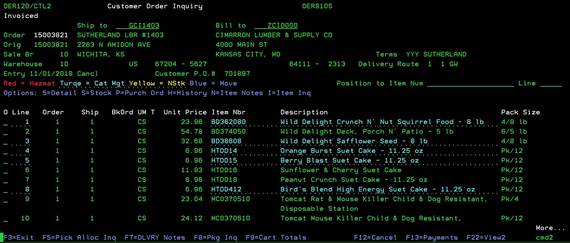
Valid Order Status codes are:
·
Arms Lsc Hld - License problems, this order is on hold.
·
Backordered - Waiting on receipt to fill this order.
·
Being Checked - Has been picked and is now being
checked.
·
Being Picked - Being processed by the warehouse.
·
Billed - Next step for order is to be invoiced.
·
Booking Hold - Booking order, must be released for
processing.
·
Card Pend - Waiting for credit card approval.
·
Card Rej - Credit card was rejected.
·
Credit Check - Not processed until released by Credit
Dept.
·
Deleted - Order has been voided, will not be processed.
·
Future Order - Will be released for processing at a later
date.
·
Future Cmt - Future order with stock committed.
·
Filled BKO - Backorder with stock assigned to it.
·
In Pool - Available in the warehouse to be pulled.
·
In Transit - Return being sent in by customer.
·
Invoiced - Order is
complete and waiting for payment.
·
Invoice Edit - Batch invoice processing, the order was
edited.
·
Invoice Held - Order not invoiced until someone releases
it.
·
Ord Dept Hld - Order put on hold by the person that entered
it.
·
Pricing Hold - Will not be processed until released by Sales
Dept.
·
Quotation - Quote, must be changed to an order for
processing.
·
Received - Return received.
·
Shipped - Has been
picked, checked & shipped to the customer.
·
Sml Ord Hold - Order value too low to process.
Please
refer to Order
Holds for more details on how to handle orders containing ‘Holds’.
On
the first Customer Order Screen, you can see the Ship-to and Bill-to Customer
information, as well as customer PO#, sales branch/warehouse, and item listing.
You may need to PAGE DOWN to see all items listed on this order. Some items may
have special color-codes (different from the usual Green
color).
Special
Colored Items are:
·
Red = Hazmat item
·
Turquoise = Cat Mgt
·
Yellow = Non Stock item
·
Blue = Moved item to another order
From
the item listing you can choose: (5)Detail OER120/LINE, (S)Stock ICR109/CTL1, (P)Purchase order (if
applicable) ICR127/CTL1, (H)History Menu 1960,
(N)Item Notes (if applicable) ICR179/CTL1, or (I)Item Inquiry Menu 3930.
Choices
for the entire order include: (F5)Pick Alloc Inq Menu 8940, (F7)Delivery
Notes OER166/HEADER,
(F8)Pkg Inq Menu 1980, (F9)Cart Totals OER8CLSEDR, (F13)Payments Menu
6170 and (F22)View2 -toggles item information on screen.
Pressing
ENTER will take you to the second Customer Order Inquiry Screen (OER120/CTL3)
for delivery and note information.