Order Inquiry by Customer (OER130)
Can be accessed by:
1.
Menu 1930
This
menu option lets you inquire on a selected customer’s orders. You can see
invoiced, on hold, in pool, being picked, backordered, returned orders and more.
The default setting is for Open orders, but with the order filter options at
the top of the screen, you can change the order list in multiple ways. See below for the order filter options.
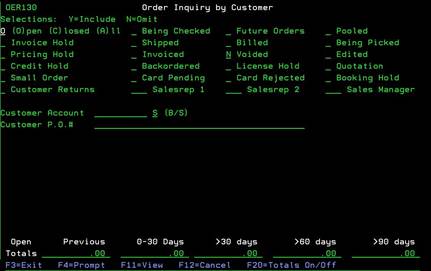
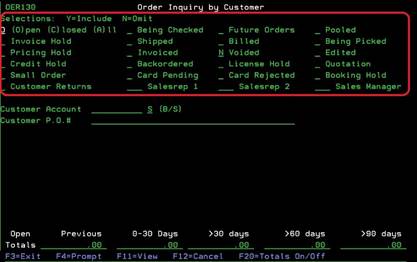
Order Filter Options
To
use this order listing, you need to choose your Order Filter options and select
a customer number. The filter options at the top of the screen, help to
customize your view of this customer’s orders. By entering a “Y” beside the
option, those items will be selected in the view. For example, if you place “Y” beside Future
Orders, you will see only the future orders for this customer. If you place “Y”
beside Backordered, you will see only the backordered orders for this customer
and so forth. The default is for all Open Orders unless you choose differently.
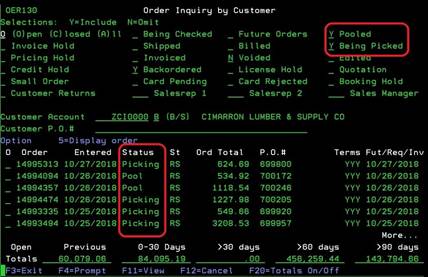
If
you want to see all the Open orders that are In Pool or Being Picked, place a
“Y” beside both of those options. You can customize this view in any manner by
choosing the different combinations of options available.
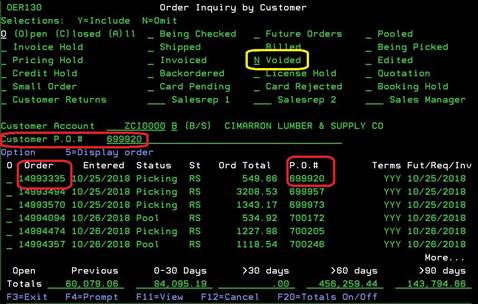
If
you want to search the Open orders for a particular order using the Customer’s
Purchase Order #, enter the PO# below the customer number and press ENTER. If
you do not immediately see the requested Purchase Order#, check for voided
orders by placing “Y” in that selection option.
Once you have the order filter options setup as you wish, enter the desired customer number. If you have forgotten the customer#, you can do an F4 lookup SLCUSTOMER on that field. After that is completed, press ENTER to see the requested order listing. With the orders now listed, you can see the order details. You can choose: “5” Menu 1910 to display order details, F11-view (on screen toggle showing ship via and warehouse information), or F20-Totals on/off (on screen toggle for A/R totals at bottom of display). The “Totals” shown at the bottom of the screen are for open orders that have not been invoiced.