ASN/Shipping Information aka: Carrier Detail (OERD856R)
Can be accessed by:
1.
Menu 56160
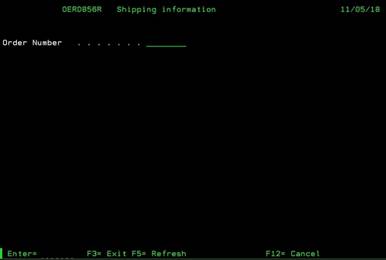
On this menu option, you can maintain the ASN/Shipping Information for a single order#. This information comes from the Scan on Board option from Warehouse Processing. This option does require special permissions. If you have any questions on your status, please see your supervisor. Enter the order# that you wish to maintain and press ENTER.
Shipping Information (OERD856R-second screen)
Can be accessed by:
1.
Menu
56160, Order#
On the second screen, all the Shipping information for the selected order is displayed. This screen is pre-filled with data that was entered on the order during scan on board. Each field has a significant purpose and links to several other programs internally.
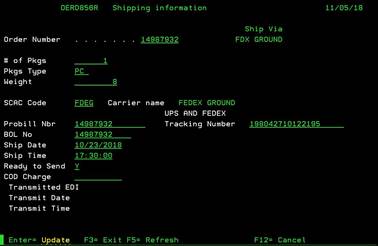
Order#, Number of pkgs, pkgs type and weight are all pre-filled by the system according to the line items information for this order. The other items are filled in by Scan on Board. The most important and critical information on this screen are described below:
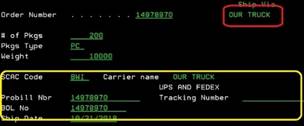
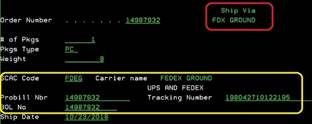
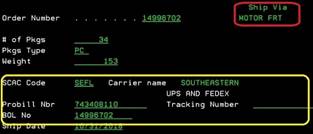
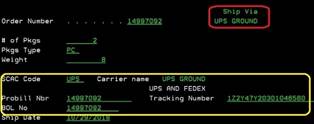
· SCAC Code – This is the mode of transportation used to ship this order. This should be: BWI (if shipped OUR TRUCK), AVRT, AACT, CENL, EXLA, FDEG, FXFE, RLCA, SEFL, UPSN, or USPS just to name a few. This code also helps us to match up the EDI Freight Carrier Invoice that we receive for the orders sent by the Motor Freight Carriers. See Menu 56164 for a listing of SCAC codes established and a link to view the online lookup source for the Official SCAC codes established by the Freight Carrier Industry.
· Probill Number- This number can be one of two things: Freight Carrier assigned Pro bill number (if shipped by Motor Carrier), or BWI order# if shipped by: OUR TRUCK, UPS or Fedex. If shipped by a Motor Freight Carrier, this Pro bill number must be setup in Menu 56163.
· UPS & FEDEX tracking number – This is the place where the Fedex tracking number or UPS tracking number is saved in the system. These are the only numbers that should be in this field. All other entries will be ignored.
· BOL no – This is the Bill of Lading number and should always be our BWI order#. It should be the same as the Order Number at the top of this screen. This number is sent to the Motor Freight Carriers to let them know we are shipping product and it is what they return to us on the EDI Freight Carrier Invoice.
· The Ready to Send field will display if this information has been transmitted to the Motor Freight Carrier. If the field is “Y”, then it has not been sent yet, but it is ready to go.
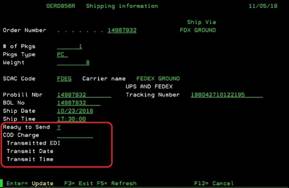
· If the Ready to Send field is “D”, then it has been delivered to the Motor Freight Carrier already. In a future release, changes will not be allowed to this screen once it has been sent to the Motor Freight Carrier.
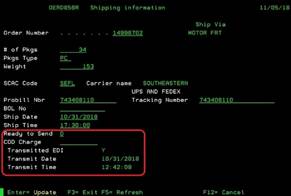
The data listed on this screen will be sent by EDI to our Freight Vendors and used to validate incoming EDI Freight Invoices. It is imperative that this data is correct. There may be times when this data needs to be changed. For example, an order was sent out on BWI truck and was undeliverable. Now, it will be resent by a Motor Freight carrier. You can change the SCAC code and corresponding pro bill numbers as necessary. However, changes to the SCAC code and/or the Probill number will be validated against the Pro bill File (see Menu 56163). If the SCAC code/probill is not setup in that file, your changes will be denied.
Below are some examples: