Open PO’s Waiting for
Approval to Send – Menu option 4111
The Open PO’s Waiting for Approval
to Send screen displays Purchase Orders that the system has determined
requires management approval before sending to the vendor.
And then allows a manager to approve
the Purchase Order and release to send.
Reasons a Purchase Order may be put
on Approval Hold.
1)
An item on the Purchase Order has never before been ordered
for the requesting warehouse.
2)
An item on the Purchase Order has an order quantity greater
than the quantity short as determined by the Smart PO program.
3)
An item on the Purchase Order has had 5 or fewer customer
orders for this item in the past.
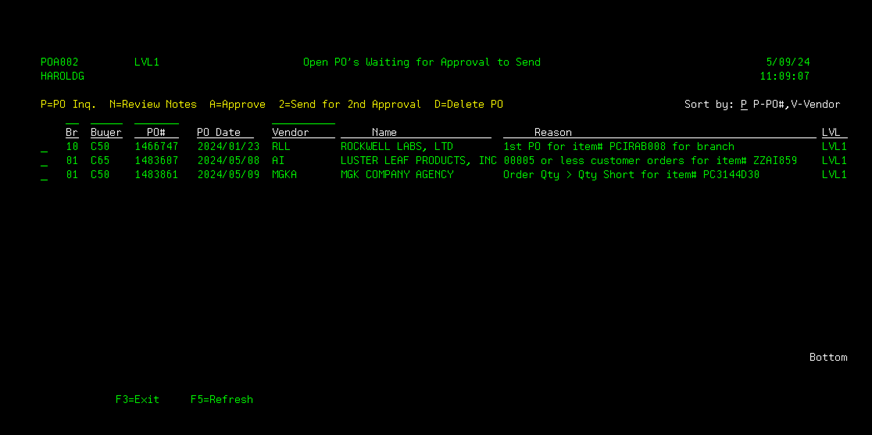
You can sort the listed Purchase
Orders by Purchase Order number, or by vendor by changing the Sort by
option.
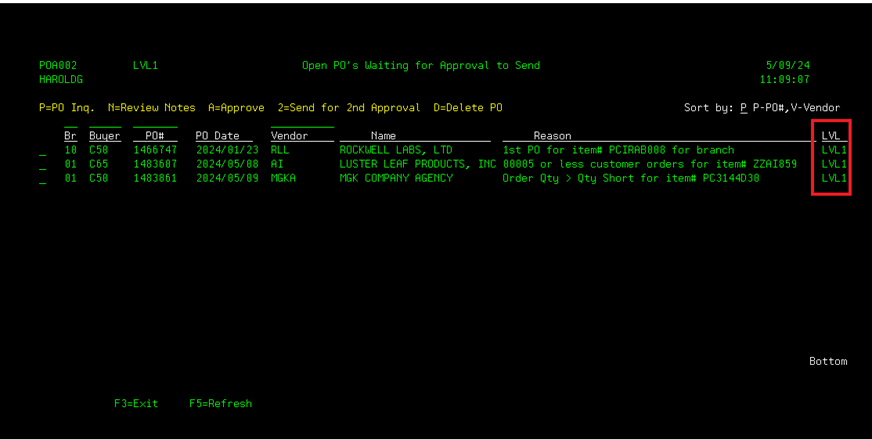
The LVL column identifies the
Approval level the Purchase Order is at.
LVL1
means the Purchase Order is awaiting for Purchasing manager approval, LVL2
means the Purchase Order is awaiting on Business Manager approval.
APPD
means the Purchase Order has already been approved for sending to the vendor.
DELD means
the Purchase Order was Deleted by the Purchasing Manager or a Business Manager.
The
Purchasing Manager and Business Managers will see all Purchase Orders waiting
for approval.
Any
user with Inquiry-only access will see Purchase Orders at both levels, but
cannot approve or delete any Purchase Orders.
Corporate
buyers with inquiry-only access will only see their Purchase Orders. Branch users, with inquiry-only access, at
the branch level
will
see all Purchase Orders from there division, parent branch and associated
twigs. Twig users, with inquiry-only
access, will only see
Purchase
Orders from there twig.
The
pending Purchase Order display can be limited to a specific Branch, Buyer, or
Vendor by entering the desired selection in the fields above each column.
The
default display is to only show Purchase Orders that are awaiting approval, at
level LVL1 or LVL2.
The
user can also select to display a specific Purchase Order by entering the
Purchase Order number above the column Purchase Order column.
If a specific Purchase Order is
requested for display, and has gone through the approval process, the Purchase
Order will display no matter the
approval status. This allow the user to review the approval
history of approved Purchase Orders.
If a Purchase Order has been
approved, the only options available on the 4111 screen are for Purchase Order
inquiry or to review the approval notes.
From the Purchase Order Approval screen,
you have the options to:
P - View the Purchase Order
(calls menu option 4910)
N -
Review any Approval related notes for the Purchase Order.
A – Approve the Purchase Order to be sent to
the vendor. (Users with approval
authority).
2 – Send the Purchase Order to the desired
Business Manager for further approval.
(Users with approval authority).
D – Delete the Purchase Order before it is
sent . (Users with delete authority).
If Option N is selected, the
Purchase Order Approval Notes screen will display:
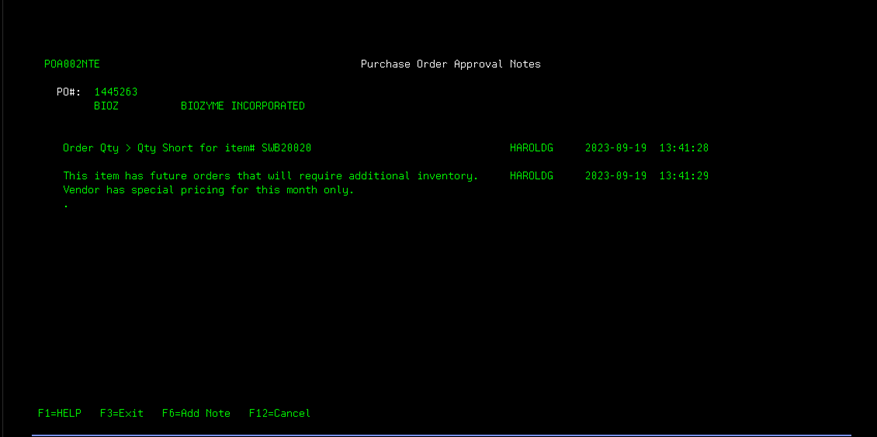
The notes will tell why the Purchase
Order was put on approval hold, and any changes to the approval status.
Plus, any additional notes that users
may feel necessary.
The user can add notes to the
approval processing by pressing F6. A
window screen will display so that additional comments can be added.
Up to 5 lines can be entered per
display. Press F5 to save the new notes,
or F12 to cancel entry.
If Option A is selected to
approve the Purchase Order, a window screen will display to verify the approval
selection:
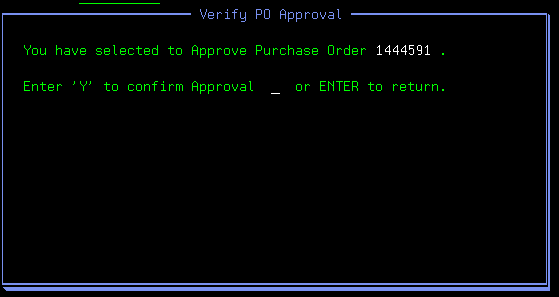
Enter a ‘Y’ to approve the Purchase
Order or ENTER to not approve.
If ‘Y’ is selected the Purchase Order
is released from approval hold. The Purchase Order will no longer display on
the pending approval screen.
An Email is sent to the buyer on the
Purchase Order to notify that the Purchase Order has been approved.
And, if the vendor is an EDI vendor,
the prompt screen to print the Purchase Order is displayed (same as menu option
4140) if needed. If the vendor is not an
EDI vendor, the Email prompt screen is displayed to allow the Purchase Order to
be Emailed (same as menu option 4145).
If Option D is selected to
delete the Purchase Order, a window screen will display to verify the deletion.
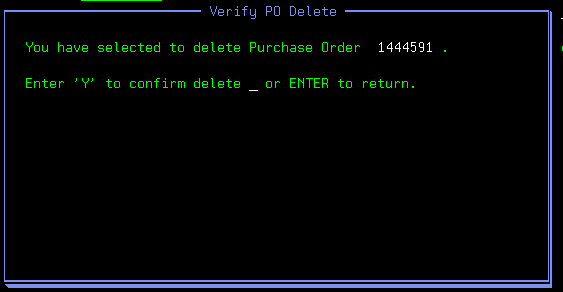
Enter ‘Y’ to delete the Purchase
Order or ENTER to keep the Purchase Order.
An Email is sent to the buyer on the
Purchase Order to notify that the Purchase Order has been deleted.
If Option 2 is selected to
send the Purchase Order to a Business Manager for second level approval, a
window screen will display to select the Business Manager to send the approval
request to:
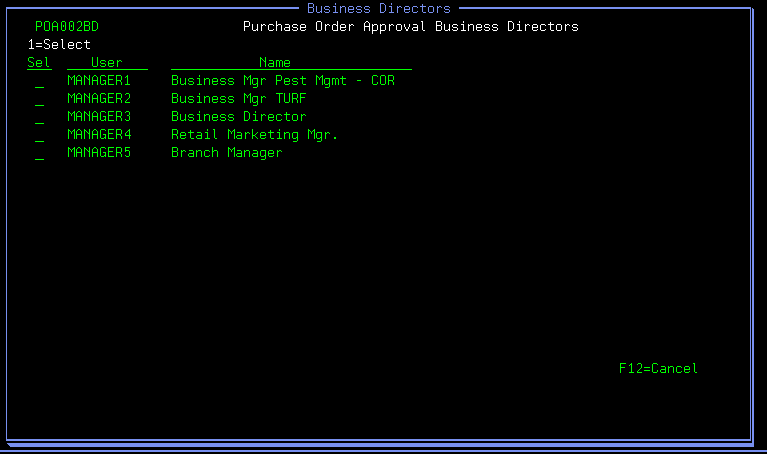
Enter ‘1’ by the desired Business
Manager or Managers to request approval and press ENTER, or F12 to
cancel.
If a Business Manager is selected,
the approval level of the Purchase Order is change to level 2 (LVL2), and an
Email is sent to the selected Business Manager(s) informing them that their
approval is required.
Also, if a Purchase Order is at level
2, Option 2 can be used to send the Purchase Order to another Business
Manager. Such as when the Business
Manager assigned to this Purchase Order is not correct, or another Business
Manager needs to review the Purchase Order.