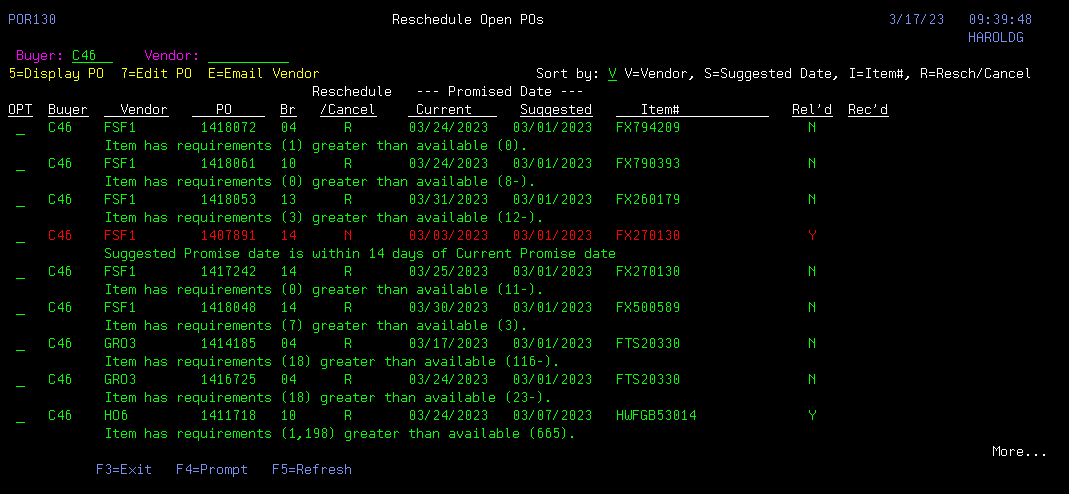
Reschedule Open PO’s
overview – Menu option 4156
The Reschedule Open PO’s screen determines
and displays any Purchase Order that the program recommends the Promised
delivery date be changed. The screen
displays Open ( un-received), non-Direct Ship Purchase Order that the program
has determined needs the Promised date changed, either earlier or later than
the current Promised date, or that the Purchase Order can be canceled
completely.
The initial screen will display any
open Purchase Orders for the requesting user’s buyer code.
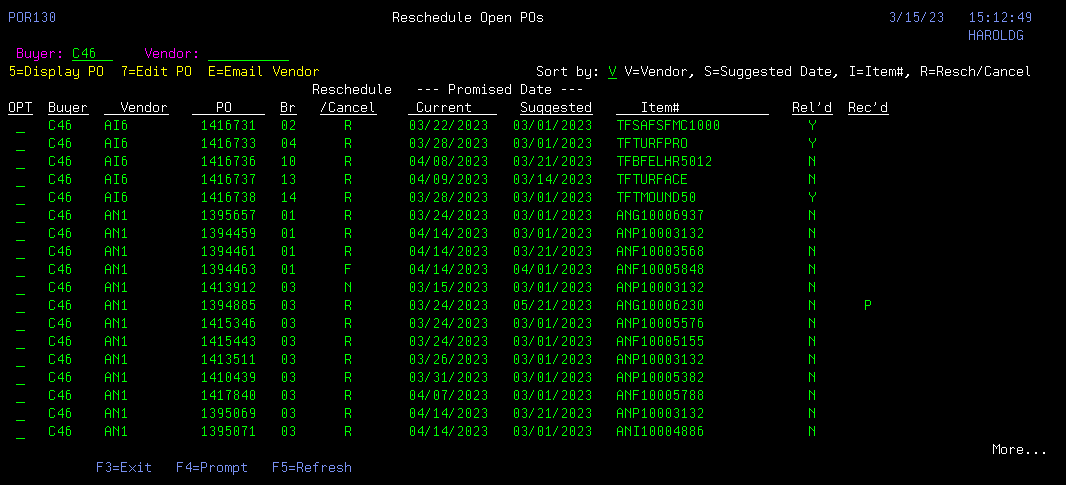
You can limit the Purchase Orders
display by entering a specific Vendor above the Vendor search field.
You can also change the sequence of
the listed Purchase Orders by changing the Sort by: field.
If a line is displayed in RED, the Purchase Order is already late based on the
current Promised Date.
If a item number is displayed in YELLOW, the item has a Negative availability,
for the week that is the requirements are calculated.
Display options:
5 = Display the listed Purchase Order (same as menu option 4910).
7 = Maintain the listed Purchase Order (same as menu option
4110).
E = Send an Email to
vendor for the listed Purchase Order (same as menu option 4145).
The Rel’d column indicates the
Purchase Order has been confirmed with the vendor and released to logistics.
The Rec’d column indicates
that part of this Purchase Order has already been received.
The Reschedule/Cancel column
is the recommended action to be take for this Purchase Order.
R = Reschedule the Purchase
Order to the Suggested Promised Date.
C = The Purchase Order is no
longer required and can be Canceled.
F = The item displayed has
Future Orders with due date(s) before the current Promised Date.
N = The Suggested Promised Date
is within 2 weeks of the current Promised Date and no change is necessary.
NOTE: All these changes are recommendations
only, and should be confirmed before changing.
The item number and Suggested
Promised Date listed, is the item with earliest requirement Suggested Promised
Date on that Purchase Order.
Process for calculating Suggested
Promise Date:
Read thru the items on order for the Purchase Order to be tested.
Find the quantity available for the item read.
Find the Sales History from last year for the current month. Then divide by 4 to get a week’s estimated
requirement.
Then we compare the quantity available to a weekly requirement, 1 week
at a time.
If there is 1 week or less of available quantity on hand, then the
program suggests the product be received in the first week of this month.
If there is 1 week of available quantity on hand, then the program
suggests the product be received in the second week of this month.
If there are 2 weeks of available quantity on hand, then the program
suggests the product be received in the third week of this month.
If there are 3 weeks of available quantity on hand, then the program
suggests the product be received in the fourth week of this month.
The quantity ordered on this Purchase Order is then added to the
available quantity, assuming the Purchase Order will be received in this month.
The next Purchase Order for this item is then read and the process is
repeated until the requirements for this month are met.
Once the requirements for this month are met, the estimated weekly
requirements for next month are detemined from the Sales History for the read
item,
and the comparison calculations are repeated. Then the 3rd month is tested in the same
process.
Other considerations:
If the item read is a Class 3 or Class
4 item, and there are no Current or Future customer orders, the recommendation
is a ‘C’ to cancel the Purchase Order.
The Suggested Promised Date can be
BEFORE or AFTER the current Promised Date.
If more information is needed to see why a Purchase Order was suggested
for rescheduling, function key F11 will display the reason for rescheduling.