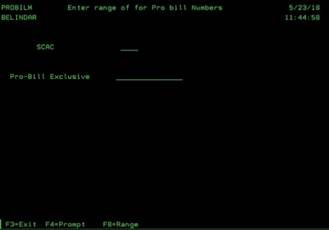
Enter Single
Pro Bill Number (PROBILM)
Can be accessed by:
1.
Menu
56163
From the main screen, enter the SCAC code for the Motor Freight Carrier: AVRT, SAIA, SEFL, ODFL, etc., (or use the F4 lookup) and the Pro Bill number available from the carrier. Scanning the Pro Bill number is our preferred method to eliminate human error. If you schedule and receive your Pro Bill number via Motor Carrier website, you can manually enter the Pro Bill number here also. NOTE: If entering the numbers manually, you will have to hit “+” (field+) in each field to accept the numbers properly.
This step adds the Pro Bill number to the WMS system, so it will be available when the warehouse scans shipment on board. It does not link the Pro Bill number to a particular order at this time. If the SCAC code and Pro Bill number are not entered properly, the freight invoices we receive via EDI will not match with the order/shipment/branch information.
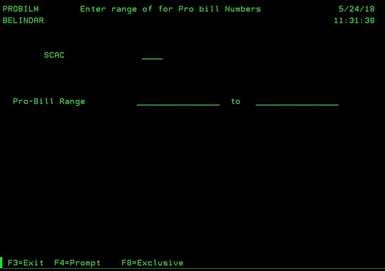
Enter Range of Pro Bill Numbers for a
single SCAC (PROBILM)
Can be accessed by:
1.
Menu
56163, F8
Transportation department uses this option to store a Book of Pro Bill numbers for each Motor Freight carrier, so they will be available on a Motor Freight order. This must be completed BEFORE the Scan on Board process.
If your Motor Freight carrier has sent a Book of Pro Bill
numbers that are in a consecutive order (ex. 100, 101, 102, 103, etc.),
you can press F8 to submit a RANGE of pro bill numbers. This will speed up your
data entry by not entering each Pro Bill number separately. If the Pro Bill
numbers are not in consecutive order, you must enter them individually using
the Single Pro Bill
option.
After pressing F8, enter the SCAC code (or use the F4 lookup) to find the right Motor Freight carrier. Then, you can enter (or scan) the beginning number of the Pro Bill book and the ending number of the Pro Bill book (example: 100 to 110). Scanning the Pro Bill number is our preferred method to eliminate human error. NOTE: If entering the numbers manually, you will have to hit “+” (field+) in each field to accept the numbers properly.
This step adds the Pro Bill numbers to the system, so they will be available when the warehouse scans shipment on board. It does not link the Pro Bill number to a particular order at this time. If the SCAC code and Pro Bill number are not entered properly on the order, the freight invoices we receive via EDI will not match with the order/shipment/branch information.
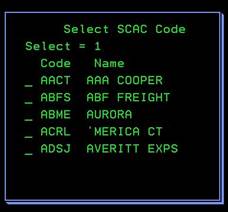
F4 – Scac Lookup
Can be accessed by:
1.
Menu
56163, F4
You can search for available SCAC codes by pressing F4 to lookup valid codes. Scroll through these by pressing PAGE DOWN. Once you find the proper SCAC code, use “1” to select and press ENTER. If the SCAC code you need is not shown, please use Menu 56164 to add a new SCAC code.