Item Inquiry (SELITMC)
Can be accessed by:
1.
Menu 3924
2.
Menu 3910, F4
The Item Inquiry screen is quite comprehensive and will be replacing Menu options: 3910, 3920 & 3940. This inquiry can also be accessed from Order Entry (Menu 1110) when selecting/looking up items for purchase. This menu option can display: quantities available, quantities needed for open orders, sales history, pricing, license requirements and much more. From the main screen, you can search for items by item number, item description, UPC number, Vendor number or Vendor ID, LOGMAR, Agency Code, Brand or Manufacturer. Field descriptions and usage is explained below.
**If a customer is unable to purchase a
product, please check the 3924 screen for that customer/item.
Currently, if a customer cannot purchase the item, it will not appear on the
search screen (when customer# & item# are input for search). There will be
a displayed message to show if the item is a branch specific product or if
special customer licensing is required at the bottom of the screen. You can
manually change the BRANCH field, in upper Left Hand corner, to see if this is
a branch specific product (the branch change would allow item to appear on the
search screen). If the item still does not appear, then it would be a customer
licensing issue.
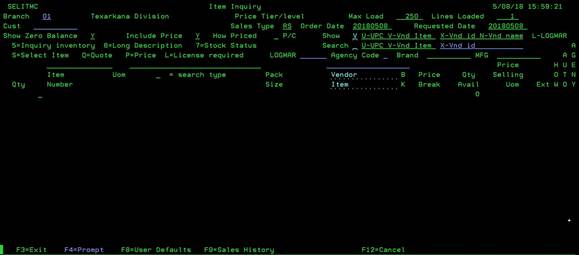
TOP FIELDS - SEARCH CRITERIA:
Branch
field: This gives you the option to see quantities
at a different branch if your current branch is low on a given product or if a
product is branch specific (mandatory warehousing).
Cust
field: If you want to see a specific customer’s
pricing on an item, this field is required. Otherwise, you will get a generic
pricing for the searched items. This field is required to check if a customer
can purchase a particular item or not. Some items may require special licensing
or be branch specific.
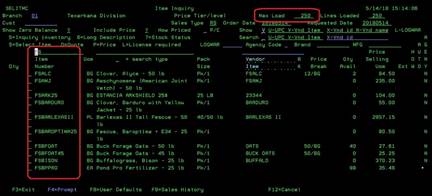
MAX LOAD
& LINES LOADED: To enable faster searches, you can specify how many lines of
information you want to load for your search. The default is 250 unless you
change your default. Default for this item is setup in F8-User
Defaults. For example, if you want
to see all items beginning with FS, the first 250 lines of information would be
pulled into you search file (see below). If you want a bigger search, you can
increase this MAX LOAD number. Warning,
the bigger the MAX LOAD number, the slower the search will run. The “Lines
Loaded” field informs you of how many lines were loaded into the search file
according to your search request.
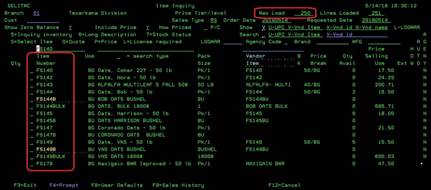
If
you are doing a more specific search (like FS140) you may only need fewer
lines. This was made available to speed up searches when more specific item
numbers were known. The smaller the MAX LOAD number, the quicker the search
will run. The “Lines Loaded” field informs you of how many lines were loaded
into the search file according to your search request.
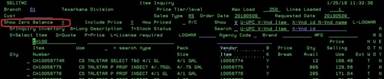
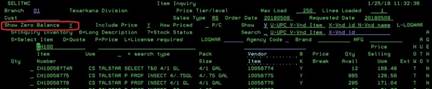
Show
Zero Balance field: This give you the
option to show or hide the items with zero balance. Default for this item is
setup in F8-User
Defaults.
Include
Price field: This give you the option to omit
pricing for the search. This will make searching faster, but will not display
pricing information. If you need price for a specific customer, you must enter
the Customer # above.
How
Priced field: This give you the option to show
only contract or promotional pricing for the search. This will make searching
slower, but will only display the ones requested.
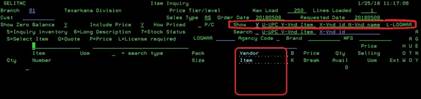
Show
field: This give you options on what data you wish
to see on the search items. Your options are: U -UPC (each UPC code where
available), V -Vendor Item#, X -BWI Vendor Code, N -Vendor Name and L-LOGMAR.
Default for this item is setup in F8-User Defaults.
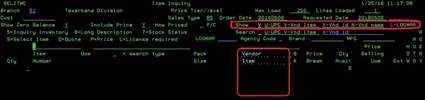
Search
field: UPC, Vendor # or Vendor ID search: Enter
U, V or X in the Search field and enter the search item information on the line
below. It will list
all items beginning with your search criteria and forward. Default for this
item is setup in F8-User
Defaults.

LOGMAR
search:
Press F4 to access Logmar
Search to view
categories to search. It will list all items beginning with your search
criteria and forward.

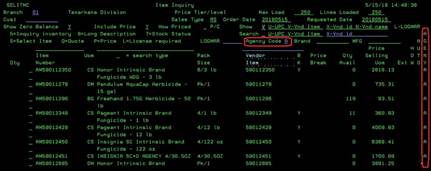
AGENCY
Code filter: Available options are: A (agency items), Q (quasi agency items), or “ “
(blank) all items. Do not enter anything into the other search fields (item#,
Description, upc/vendor item or logmar) to use this feature. If you enter ‘A’, only the Agency items will
be displayed. ‘Q’ displays only the quasi-agency items. Leaving it “ “ (blank),
will display all items regardless of status.
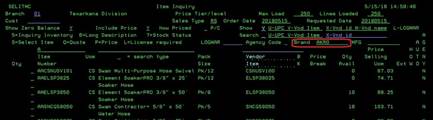
BRAND
filter:
Enter the Brand name you are searching for.
Do not enter anything into the other search fields (item#, Description,
upc/vendor item or logmar) to use this feature.
All products for the given Brand will appear in your search.
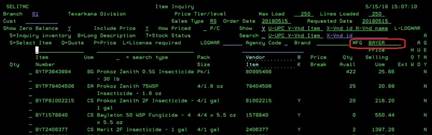
MFG
filter (Manufacturer): Enter the Manufacturer name you are searching for. Do not enter anything into the other search
fields (item#, Description, upc/vendor item or logmar) to use this
feature. All products for the given Manufacturer
will appear in your search.
Item#
search:
Enter the Item# you wish to search for. It will list all items beginning with your
search criteria and forward according to the MAX LOAD information lines
requested.

Item
Description search: Type the description you
are searching for on the top line. In the SEARCH TYPE field, your options are:
L – searches primary & secondary item descriptions, catalog titles,
subtitles and long descriptions; S – Searches the primary item description and
catalog title only; W – Old word search – very broad; & “ “ – If you leave this field blank, it
searches primary item description only. It will list all items beginning with
your search criteria and forward. Default for this item is setup in F8-User Defaults.

LOWER FIELDS – Item details displayed:
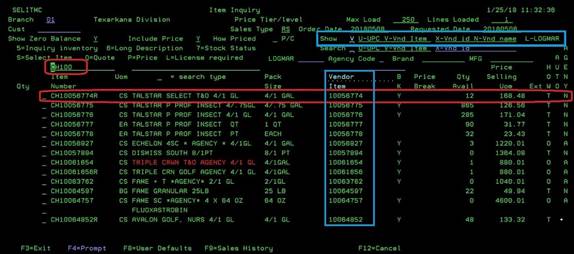
After entering a searchable field and pressing ENTER, the screen will display the items per the search criteria. In the screen below, all items beginning with CH100 are displayed. The default information shows: ITEM#, UOM, Description, Pack Size, B K, Price Break, Qty Available, Price Selling UOM, Ext, HOW, AUTO, and AGENCY. You can choose what to show in the BLUE COLUMN. It can be Vendor Item#, UPC, Vendor ID, Vendor Name or LOGMAR. This screen is currently showing 1-2 lines of description per item# if available. Breakdown of column information is listed below.
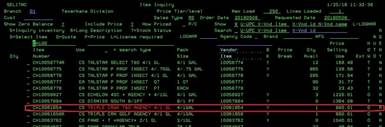
1. RED item description indicates a Hazmat item.
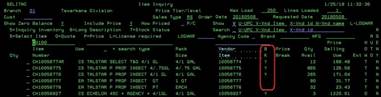
2. B K column indicates if we “break” a case and sell items individually.
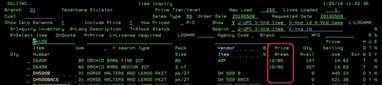
3. Price Break column will show if any quantity discounts are available for this item and at what increment.
4. Qty Avail column will display how many are available at the specified branch (upper left-hand corner). If the quantity is in RED, that indicates a “mandatory ship” warehouse and will be for the specific warehouse that stocks and ships that product. You can change the BRANCH code in upper left-hand corner to see what quantities are available at other locations.
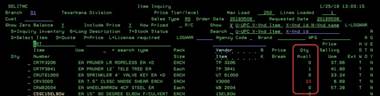
5. Price Selling UOM column will default to standard pricing unless you have entered a customer # into the field at top left corner of screen. If you use a specific customer, this search can run slower since it is computing all the pricing for the specific customer.
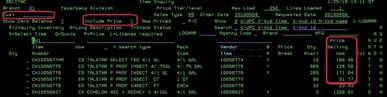
6. EXT column will let you know if items are shipped in M-1,000s or H-100s.
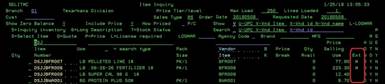
7. HOW column will let you know how pricing is determined. T=Tiered pricing; O-Old pricing; C=Contract pricing and P=Promotional pricing.
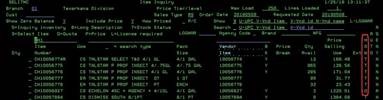
8. AUTO column
will let you know if items are setup for Auto PO for Direct Ship. 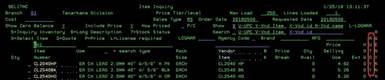
9. AGENY column will let you know if items are Agency items, Quasi Agency items or neither.
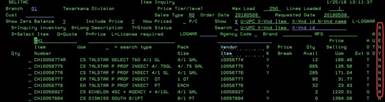
From
the Item Inquiry screen, you can select: (5)-Inquiry Inventory Menu 3910,
(6)-View Long Description ICR101, (7)-Stock Status Menu 3930, (Q)-QUOTE ,
(P)-Price, (L)-License
required DSPITMLIC,
(F4)-Prompt (where available), (F8)-User Defaults, and (F9)-Sales History CSTSAL.
If you are accessing this from Order Entry, you can also use the (S)-Select
option to pull this item into Menu 4150.
Price
Can be accessed by:
1.
Menu 3924,
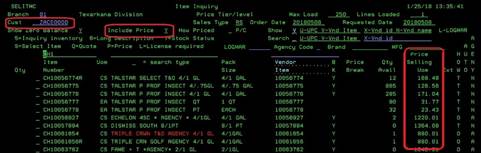
option P
Placing
a “P” beside the item number and completing the ‘Cust#’ field and putting “Y”
in the ‘Include Price’ field, will display current selling UOM pricing for the
items shown on the main screen. If you use a specific customer, this
search can run slower since it is computing all the pricing for the specific
customer.
User
Defaults
Can be accessed by:
1.
Menu
3924, F8
Pressing
(F8) from will take you to the user default screen. This will allow you to set
up the defaults and search criteria for your interactions on Item Inquiry
screen.
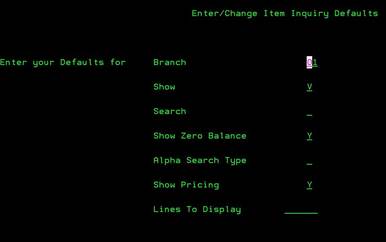
1.
BRANCH field, enter your primary shipping Branch into the first field.
2.
SHOW field, your options are: U -UPC (each UPC code where available), V
-Vendor Item#, X -BWI Vendor Code and N -Vendor Name. This is how to set the
default for your initial Item Inquiry Search (Menu 3924) screen.
3.
SEARCH field, your options are: U -UPC Code, V -Vendor Item#, X -Vendor
Code. This is how to set the default for your initial Item Inquiry Search (Menu
3924) screen.

4.
SHOW ZERO BALANCE field, your options are: Y -YES, you want to see all items
(regardless of Zero balance items), N -NO, you do not want to see items with
Zero quantities. This is how to set the
default for your initial Item Inquiry Search (Menu 3924) screen.
5.
ALPHA SEARCH TYPE field, your options are: L -searches primary & secondary
item descriptions, catalog titles, subtitles and long descriptions; S -Searches
the primary item description and catalog title only; W -Old word search, very
broad; & “ “ –If you leave this
field blank, it searches primary item description only. This is how to set the
default for your initial Item Inquiry Search (Menu 3924) screen.

6.
SHOW PRICING field, your options are: Y -YES,
if you want to see show pricing, N -NO,
if you do not want to see show pricing. This is the default for your
initial Item Inquiry Search (Menu 3924) screen. It is recommended to place “N”,
to keep your searches managable without added delays for pricing computations.
7.
LINES TO DISPLAY field, you can specify the
default MAX number of information lines to be automatically displayed on the Menu
3924 screen. The smaller the number, the faster the search screen will work.
The larger the number, the slower the search screen will work.
Underlined items- refers to another
AS400 document. Search for the other document in the AS400
Documents in the Documents tab to get further instructions.
To Report Documentation Issues:
To
report any missing items/options or make any suggestions for this user guide,
please email Belinda
Rollins. This guide will be updated as need arises or substantial
changes made to the program.