Sales
& Open Orders Excel Reports
This option for sales reps is found nested in Option 1920, then F8. If you work from inside the office, the report is found in Option 51857.
You have 2 options. You can run SALES (invoices shipments) or OPEN ORDERS (orders that have NOT shipped). These types of reports must be ran separately.
The next segment is asking if you want a Detailed or Summary report.
· If you choose SALES in the 1st segment, you will get a detailed report, regardless of what you choose here.
· If you choose an OPEN order report in the 1st segment, you have a choice
o The Detail will give you line item information for every open line on a sales order. It shows you if the item is on BACKODER or in POOL or any other status.
o The SUMMARY will give the order number, Hold Status (if needs credit approved, etc.), the truck and delivery schedule, the customer and order total.
The next segment will already be populated with YOUR sales node. You can only run sales or open order reports for your customers.
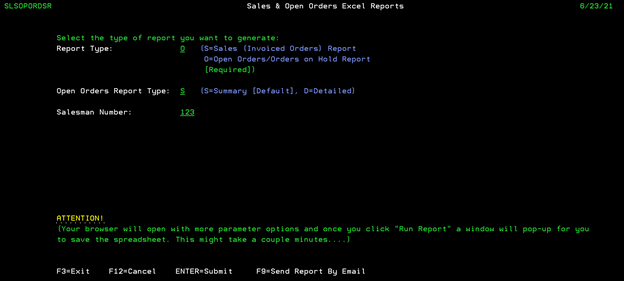
Once you’ve made you simple selections on this screen, you’ll click F9 to send report via email***. This is going to open a new window where you can plug in more filters if you choose.
o *** If you happen to click ENTER instead of F9, nothing will happen unless you are connected to a BWI network. The ENTER feature execution cannot get through our company firewall.***
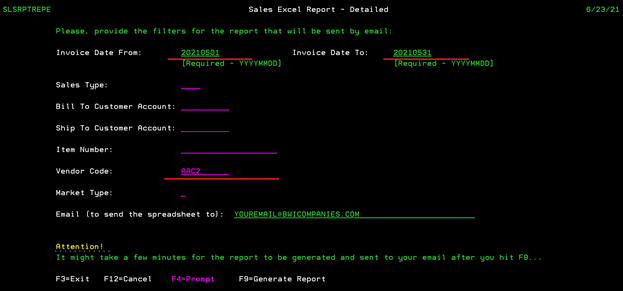
· If you chose SALES on the previous screen, you MUST provide an INVOICE DATE parameter. There is no filter for order dates; you can filter for those once you receive the Excel report. The date must be in the format shown on the screen.
o This is the only thing that is REQUIRED on this screen. If you choose nothing else, the Excel report will pull all of your invoiced sales by line item for the dates you specified. Once you have the Excel report, you can filter, sort, add, remove, manipulate however you choose.
o You do however have the option on this screen to filter data BEFORE it generates your Excel report. You can choose a particular sales type, a Bill-To customer account (this will include all SHIP-TO account where you are the sales rep), a particular SHIP-TO account, Item number, Vendor Code, Market Type (this is the PRIMARY market type, so if you choose Market L, it will include L, LB, LP, L1, L2, etc.). If you need assistance in finding the account code, vendor code, etc., you can do an F4 on any line to search.
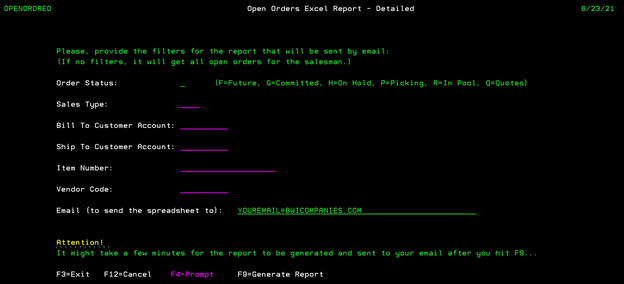
· If you chose OPEN ORDERS on the previous screen, there is nothing that is REQUIRED on this screen. But, you can filter by the categories on the screen, Status, Sales Type, Bill-To, Ship-To, Item or Vendor code. You can F4 on any of those fields to search as well.
o If you do not make any selections, the Excel report will return all of your customer’s open orders. By line item if you choose Detail or by Order Number if you choose Summary.
Once you’ve made all your selections on this screen, click F9 again to actually generate the report. When the report is sent, there will be a message in red font at the bottom of the screen indicating that it is being sent to your email.
***IMPORTANT***
If you
ran the SALES report, this report DOES contain BWI’s sales cost. If you are
running this for a customer, BE SURE to DELETE this column before sharing. The
cost is there so that YOU can calculate your margins.
On the next page, I will show some screen shots from examples.
Screen shot where I chose SALES and DETAIL on the first screen. I have populated the Invoice date range and chosen a vendor to run the report on. This scenario will give me a detailed line item report for sales from 05/01/2021 through 05/31/2021 for vendor code AAC2.
RESULT:

Be sure and remove the last
column that contains BWI’s sales cost before sharing.
Screen shot where I chose OPEN ORDER and DETAIL on the first screen. Nothing is REQUIRED on this screen, and I want to see all of my open orders, so I left everything blank.
RESULT:

There is nothing that you cannot share on the Open Order report if you choose to share with your customer, although, they may not understand what each column is for.
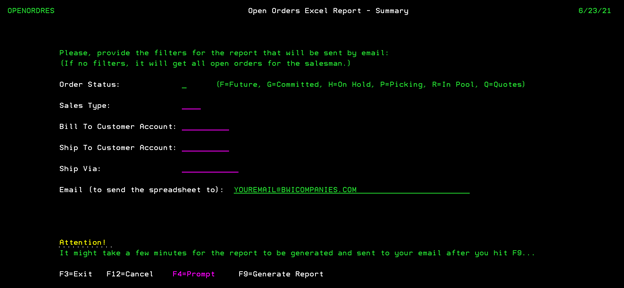
Screen shot where I chose OPEN ORDER and SUMMARY on the previous screen. Notice that the categories are more limited. This is because this is summarized by ORDER NUMBER, not line item. Once again, I am not making any filtered selections so that I can see all of my OPEN ORDERS.
RESULT:
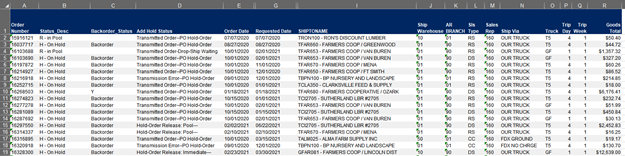
The Summary report give you truck information, any detailed HOLDS that any orders are on, etc.
I did hide some columns on each Excel screen shot just so I could get the most important information in the screen shot. Keep in mind, you can filter, summarize, manipulate this data however you choose once you receive the Excel document.