Option 3699 - Suggested
Inventory Transfers
The Suggested Inventory Transfers screen
is used to calculate and recommend transfers between a parent branch and its
twigs to keep inventory at its optimal levels.
The program can then create the
transfers that will move the displayed items.
Recommended transfer quantities are based on the available inventory at
the Parent branch and at the Twig branch, and on the Minimum and Maximum
inventory settings for the Twig branch.
How the Suggested Transfer quantity
is determined:
The program reads thru the inventory
for the Twig location and selects any item set up for that location.
Exception Vendor items for the Twig
location are NOT included in the Suggested Transfers program.
Inactive items are only included if
the item has backorders or future orders at the Twig location.
Items that are identified as Non-Stock
for the Twig location are NOT included.
NOTE: The
program will suggest a transfer when the Twig’s Available quantity is less than
or equal to the Twig's Minimum quantity.
The suggested transfer will
attempt to put the Twig’s inventory at the Maximum quantity.
The quantity suggested for transfer
is calculated by:
1. The
Twig’s Maximum inventory quantity minus the Twig’s Available quantity.
2. Then
subtract any Open Transfers or In-pool Transfers inbound to the Twig location.
3. Then
the suggested transfer quantity is compared to the Minimum Order Multiple
(MOM). If the suggested transfer
quantity is less than the Minimum Order Multiple,
round up the suggested transfer quantity to fill the Minimum Order
Multiple increment.
4. Then
the suggested transfer quantity is compared to the displayed Case or Pallet
pack quantity.
a.
If the suggested transfer quantity is less than the pack
quantity, but greater than 50% of the pack quantity, round the suggested
transfer quantity up to fill a complete pack quantity.
b.
If the suggested transfer quantity is greater than the pack
quantity, round the suggested transfer quantity up to fill the a complete pack
quantity.
5. If
the suggested transfer quantity is greater than the available quantity at the
Parent branch, the suggested quantity is
reduced to the available quantity at the Parent branch.
NOTE: All Twig items with requirements are displayed, whether a
transfer is suggested or not. This
allows the user to add a transfer request if one is not suggested by the
program.
Initial suggestion
display:
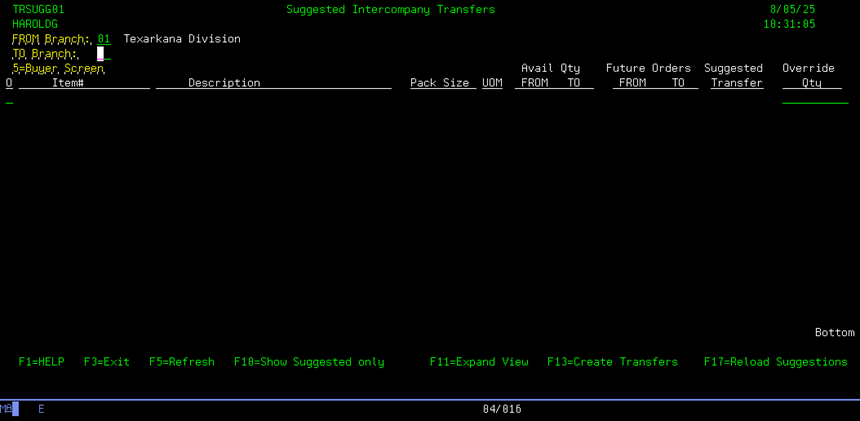
For Parent Branches:
When the initial screen is displayed,
the user’s branch will default to the ‘From Branch’. Enter the Twig that you wish to generate the
suggested transfers to in the ‘To Branch’ field. The Twig must be in the division of the
Parent Branch.
For Twig Branches:
When the initial screen is displayed,
the user’s parent branch will default to the ‘From Branch’; the user’s Twig
location will default to the ‘To Branch’. These locations are locked and cannot be
changed.
NOTE:
For Twig locations, the display is for inquiry only. From and To branches cannot be changed, and
Override quantities cannot be entered.
If this is the first time that
suggestions are made for this Parent/Twig combination (or first time since the
last transfers were generated), the program will go thru the process of
calculating the suggested transfer quantities.
If there is a pending suggestion batch, the pending batch will
display.
When the program is calculating the
suggested transfer quantities, the following message will display
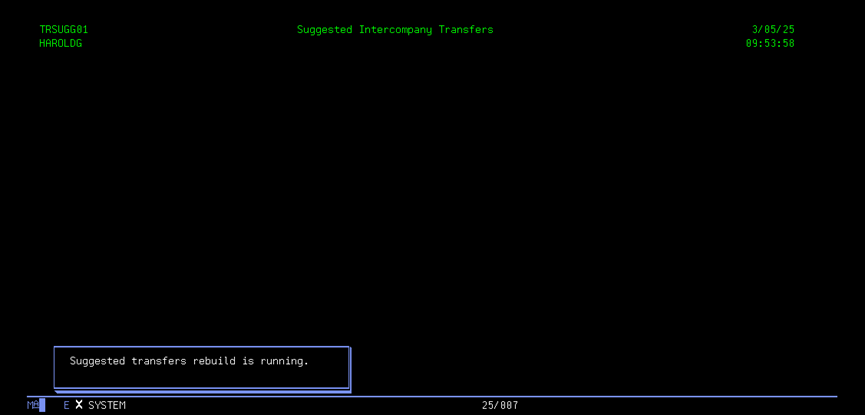
F10
Function Key:
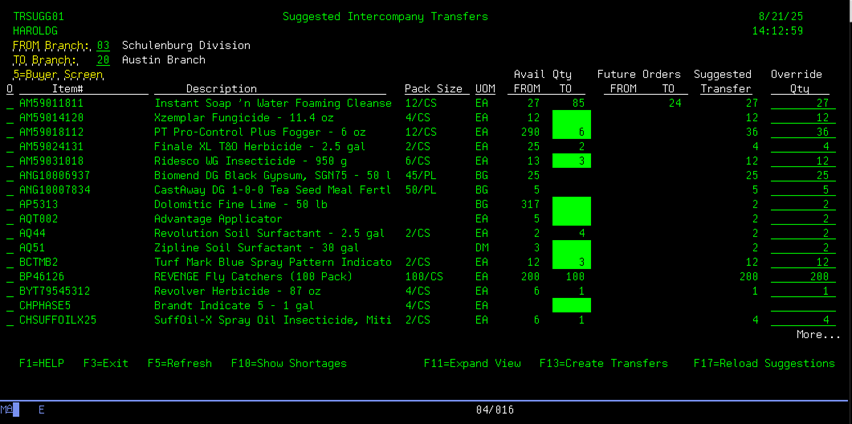
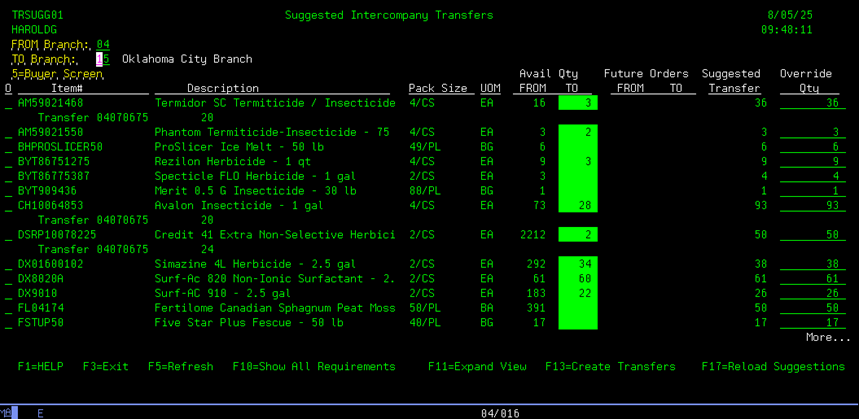
When
the initial screen is displayed, only items with suggested transfers to the
Twig location are displayed. The F10
function key will allow you to see all items for the Twig location that have
shortages (where the Twig available quantity is less than the Twig established
Minimum quantity). Pressing F10 again
will return the display to only items with suggested transfers.
With
F10 key on:

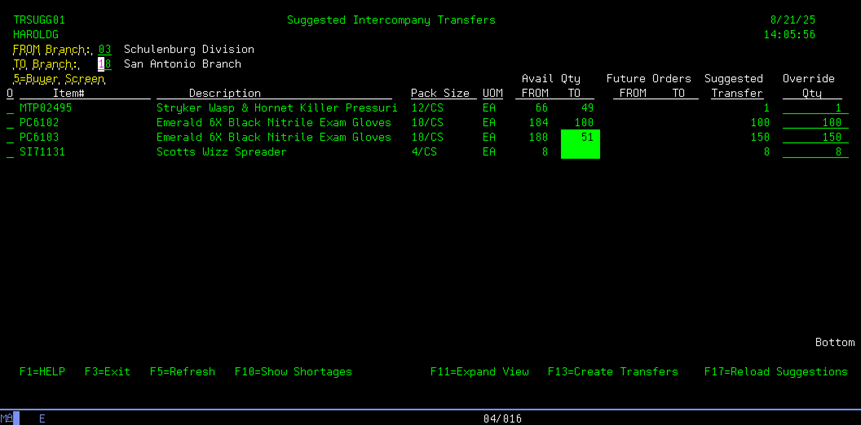
After
pressing F10:

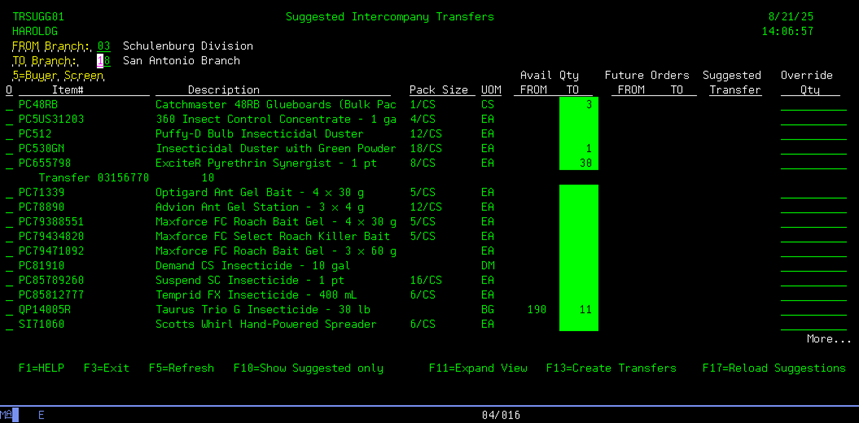
Listing
all items with shortages gives the user the ability to manually add a transfer
to the list if the item does not have a suggested transfer.
F11
Function Key:
The
F11 function key will expand the list of items to show the Minimum and
Maximum settings for the selected Twig Location.
With
F11 key on:

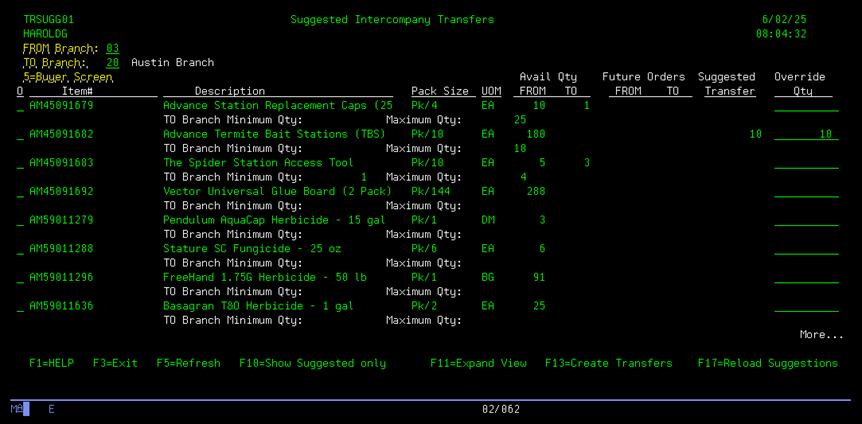
Pressing
F11 again will return the display to the initial setting.
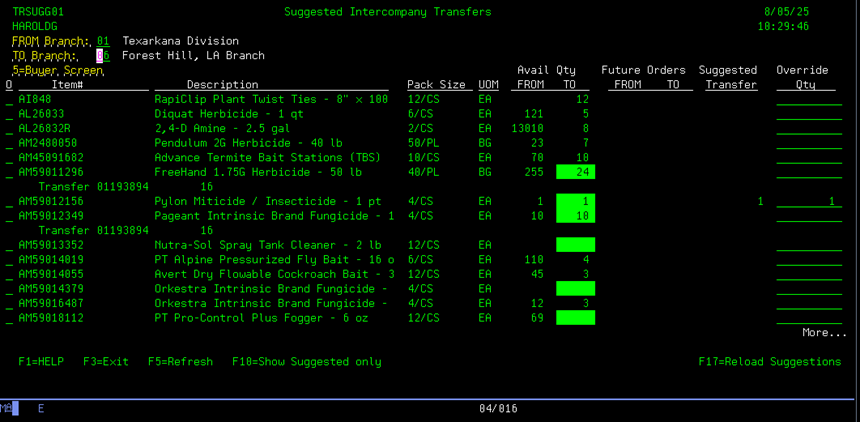
If
the Available quantity for the ‘TO branch’ is displayed in reverse
image, this indicates the Available quantity at the ‘TO branch’ is below the
Minimum quantity for the ‘TO branch’.
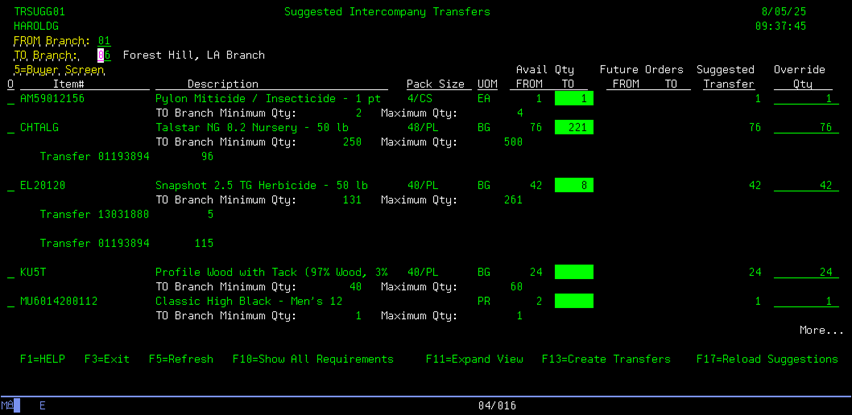
When the items are displayed, any open Transfers (active or
in-pool) will display under the item line.
And the suggested transfer quantity will be reduced by the quantity of
open transfers.


Option
5 – Display Buyer’s Super screen:
Entering
a ‘5’ in the Option column will display the Buyer’s Super screen (menu option
4150) for the selected Parent Branch and Item.


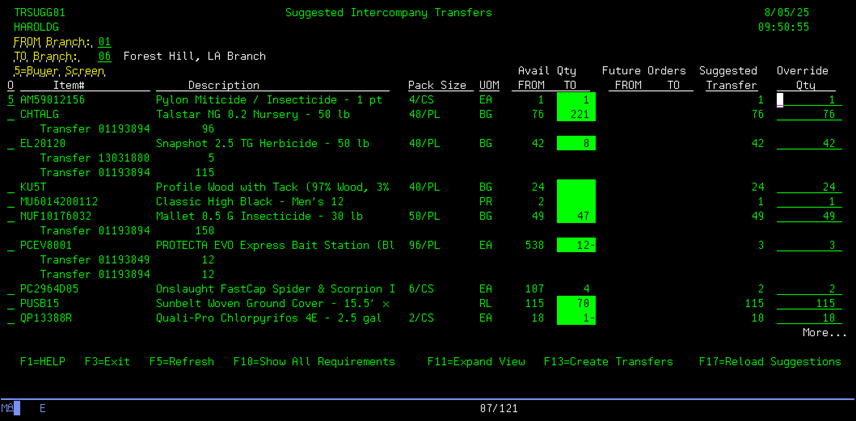
Exiting
the Buyer's Super screen will return to the Suggested Transfer display.
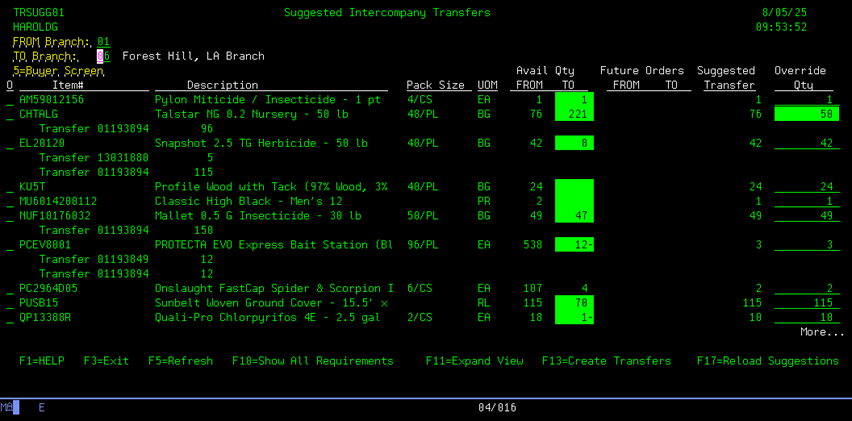
Entering override quantities:
If
needed, the user can override the suggested transfer quantity by keying the new
quantity in the ‘Override Qty’ column. Enter
in the required override quantities and press ENTER to post. The override
quantity will display in reverse
image to identify the items that are overridden.
The
override quantity can be set to 0 if no transfers is to be generated for this
item.
The
override quantity entered can not be greater than the available quantity at the
Parent location.
The
quantities in the ‘Override Qty’ column are the quantities used when transfers
are generated.
NOTE: Twig locations are not allowed to
enter Override quantities.

Reloading suggested transfer
quantities:
If it is needed to clear a pending
batch and re-calculate the suggested quantities from the available inventory
data, the F17 function key will re-calculate.
Re-calculating will clear any
overrides that were entered, and re-calculate from the current inventory data.

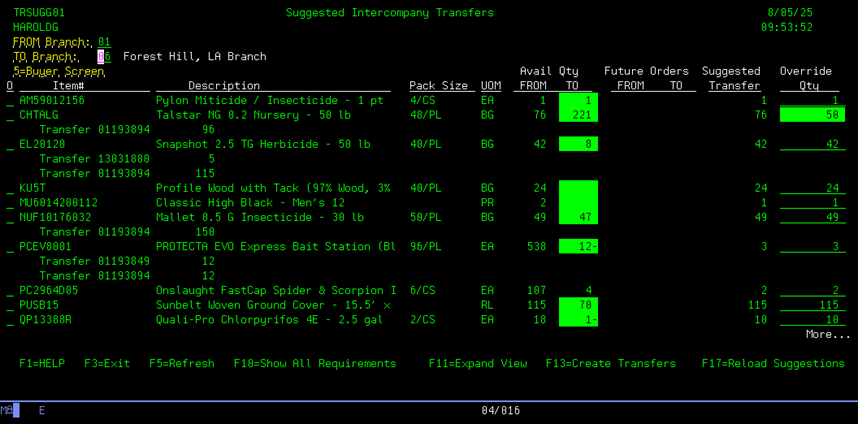
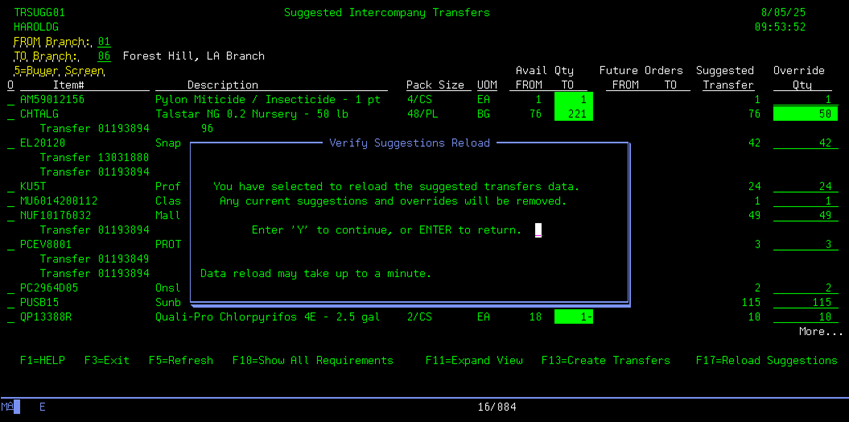
When the F17 function key is
pressed, the ‘Verify Suggestions Reload’ window will display to confirm the
request. If the transfer suggestions are
to be re-calculated, enter a ‘Y’ and press ENTER. Press ENTER without a ‘Y’ entered and
the suggestions reload is cancelled, and all current suggestions are retained.
NOTE:
Twig locations can reload suggested transfers for their location only. Reloading will remove any Override
quantities.
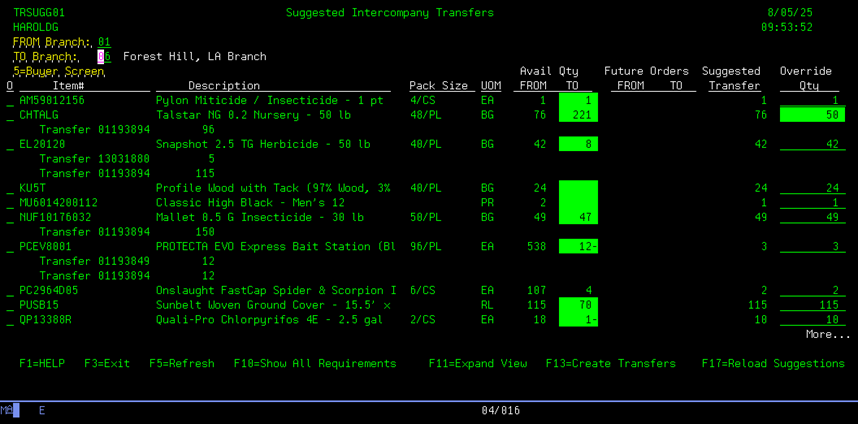
Generating transfers:
When the user is satisfied with the
suggested transfer quantities, they can press the F13 function key to
generate transfers based on the suggestions.
NOTE:
The user must have authority to menu option 3610 (‘Intercompany Transfer
Entry’) to generate transfers.
NOTE:
Twig locations cannot create transfers; the F13 function key is not
available.

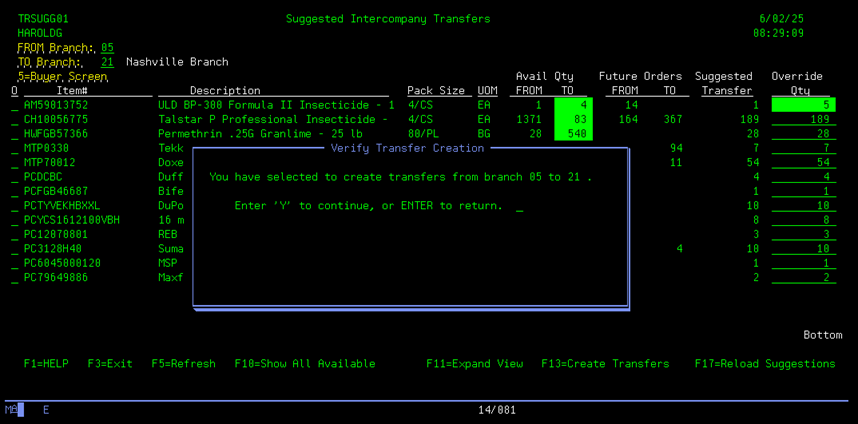
When the F13 function key is
pressed, the ‘Verify Transfer Creation’ window will display to confirm the
request. If the transfers are to be
generated, enter a ‘Y’ and press ENTER.
Press ENTER without a ‘Y’ entered and the transfer generation is
cancelled, and all suggestions are retained.
After the requested transfers have
been generated, the pending suggestions are cleared and a new suggestion list
will be calculated.
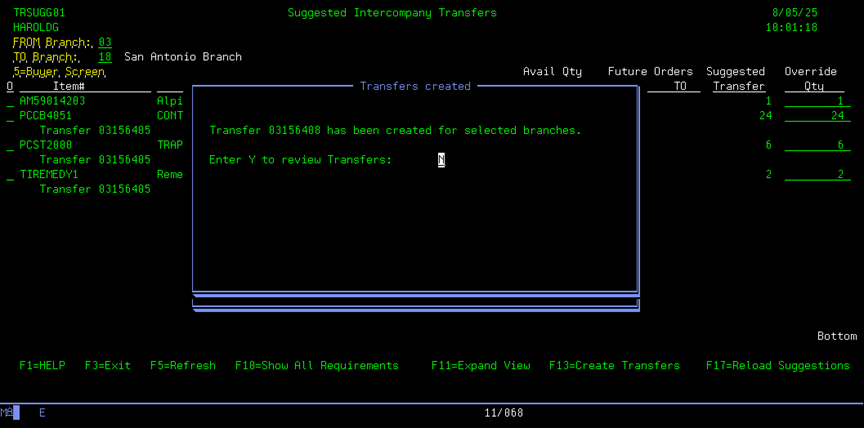
Then the ‘Transfers created’ window
will display asking the user if they wish to view the generated transfers.
Enter ‘Y’ to display the Intercompany
Transfer Inquiry screen (same as menu option 3650).