Shipment Management –Order List (WMR139/CTL1)
Can be accessed by:
1.
Menu 27,
F4, 5 ENTER
2.
Menu 27, Enter
Shipment#, ENTER
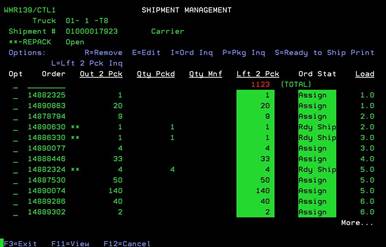
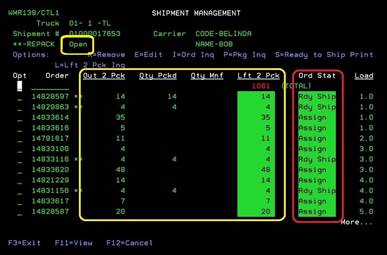
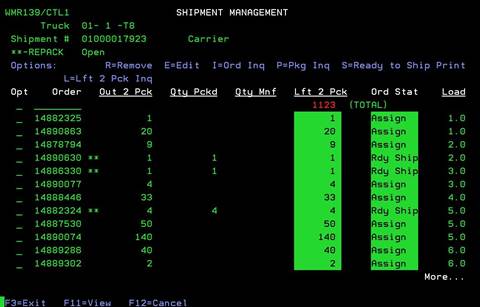
After entering the Carrier Code/Name details and pressing ENTER, you come to the Order List portion of the Shipment Management. This screen shows all orders included in this shipment. This gives all the details of each order on the load. Descriptions of the columns are listed below. This information provides a LIVE status of an order in the picking/shipping process. The Order Stat column will be constantly updated according to warehouse picking/shipping of products for each order. The columns and data are explained below.
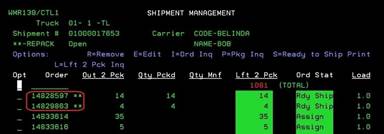
Orders with the ‘**’ designation indicate that these are REPACK orders or orders that contain repack items.
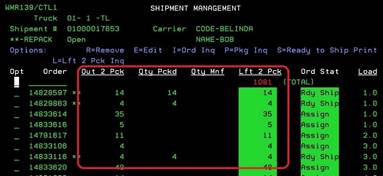
Quantity columns include:
· Out 2 Pck–total quantity required to fulfil the order
· Qty Pckd-the quantity order filled thus far
· Qty Mnf-the quantity ‘Consolidated’
· Lft 2 Pck-the unpicked quantity remaining to fulfill the order
This portion is actively updated when items are scanned during picking/packing process. Usually when a shipment is closed, the first three columns should equal and “Lft 2 Pck” should be zero. However, there can be exceptions, such as “out of stock” or items on backorder would keep the columns from not being zeroed out.
Order Status codes include:
· Assigned-the order is available for order filling
· Rdy Ship –the ordered items have been picked
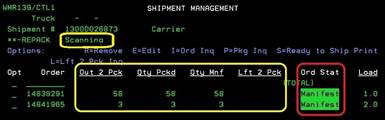
· Manifested-the order has been consolidated (Menu 21)
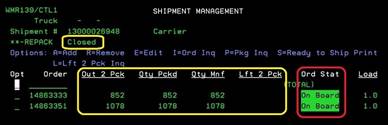
· Onboard-the order has been scanned on board and closed
This portion is actively updated when items are scanned during picking/packing process.
Order Status should be Manifested
when orders have been picked and then “consolidated” on Menu 21.
Order Status will be On
Board when the package is scanned on board and shipment is closed.
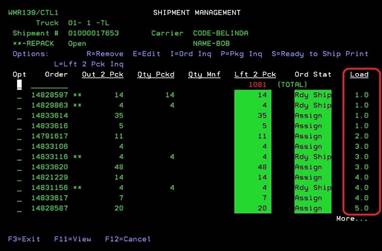
Load Sequence displays the sequence that the Orders will be loaded into the trailer. Example, #1 should be the first order loaded into the trailer. The second order loaded into the trailer should be #2 and so on.
You can also press F11 to view the customer name and any
assigned Probill# for the orders.
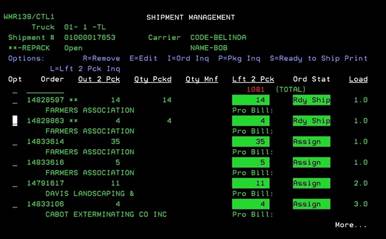
From this screen you can choose: (R)-Remove del-order, (E)-Edit, (I)-Order
inquiry Menu 1910, (P)-Package inquiry OER325, (S)-ready to ship print and
(L)-left to pick inquiry.
Remove – Shipment Management
Can be accessed by:
1.
Menu 27,
F4, 5, ENTER, R
2.
Menu 27,
Shipment#, ENTER, R
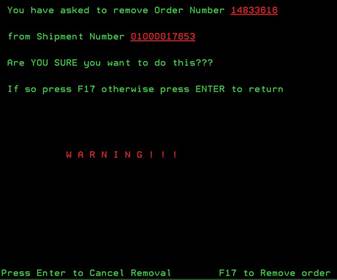
If you need to remove an order from the Shipment, you can place an “R” on the order and press ENTER.
This will bring you to the screen below. This gives you the chance to confirm or cancel the request to remove this order from the shipment. To cancel the removal request (this was requested in error), press ENTER. To confirm the removal of the order, press F17. A second warning will appear on the screen before the removal. To confirm the removal for the second time, press F22. You must run Menu 1123 for this order if you remove it from the current shipment.